

Connect Salesforce in Forecastable
Salesforce appears under CRM when your Forecastable organization has Salesforce configured. Start on Settings → Integrations.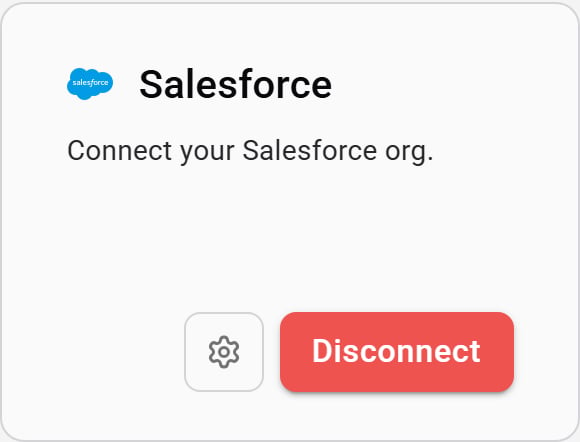
Salesforce integration card
- On the Salesforce card, click Connect.
- Complete Salesforce login in the OAuth popup.
- Click Install package for a new installation. If Forecastable detects an older package version, click Update package to install the current release.
- After the package is installed, open Salesforce settings to configure partner account types, lead mapping, opportunity mapping, and account syncs.
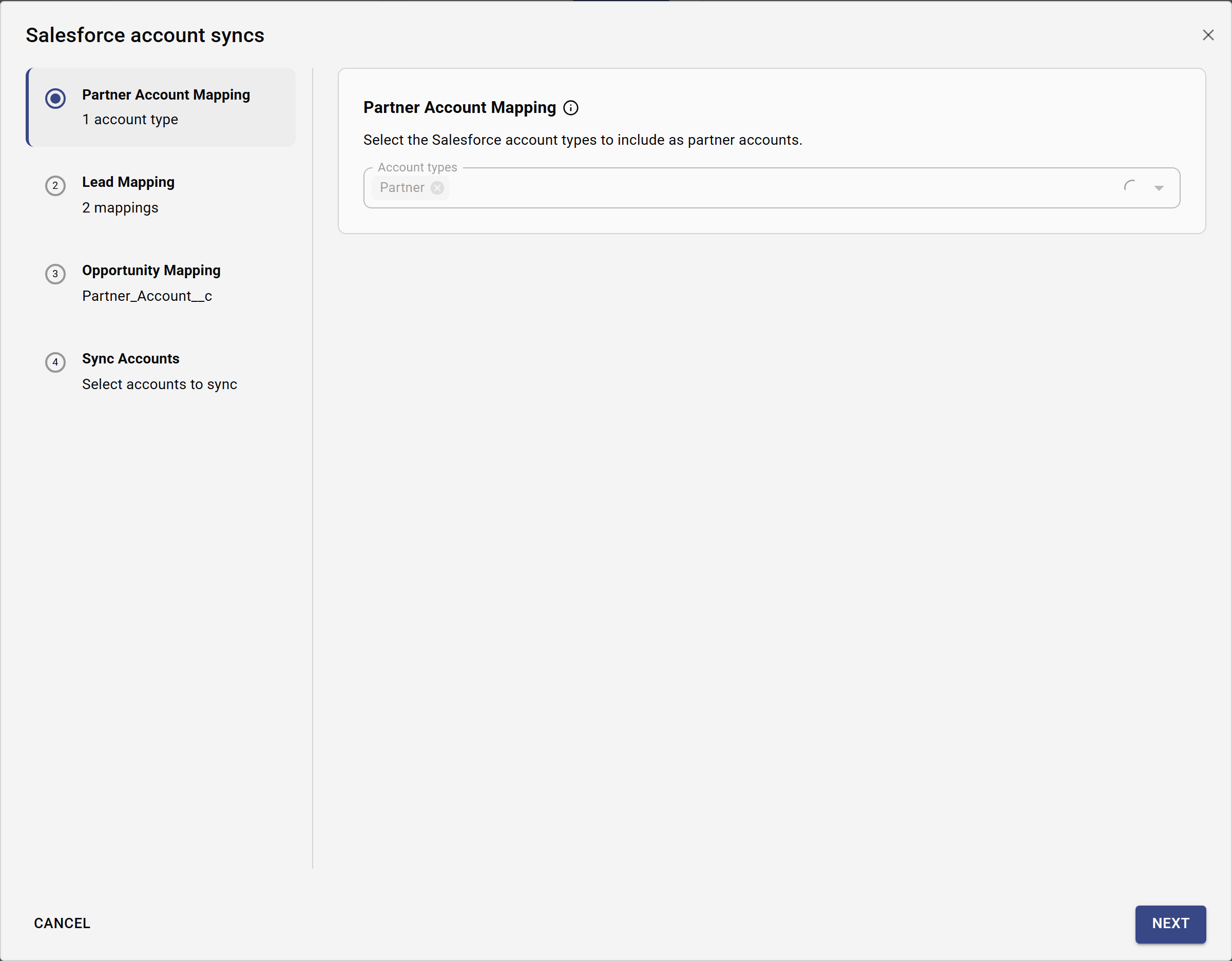
Salesforce account sync settings
Post-install steps in Salesforce
After the Forecastable connector package is installed, configure Lead field mapping so Lead conversion keeps Forecastable fields in sync.Before you start
Make sure you have:- installed the Forecastable connector package in Salesforce
- Salesforce admin access (or enough access to manage Object Manager)
Configure Lead field mapping (required)
Map Forecastable Lead fields to Opportunity fields so values carry over when a Lead is converted.-
Click the Setup (gear) icon and open Setup.
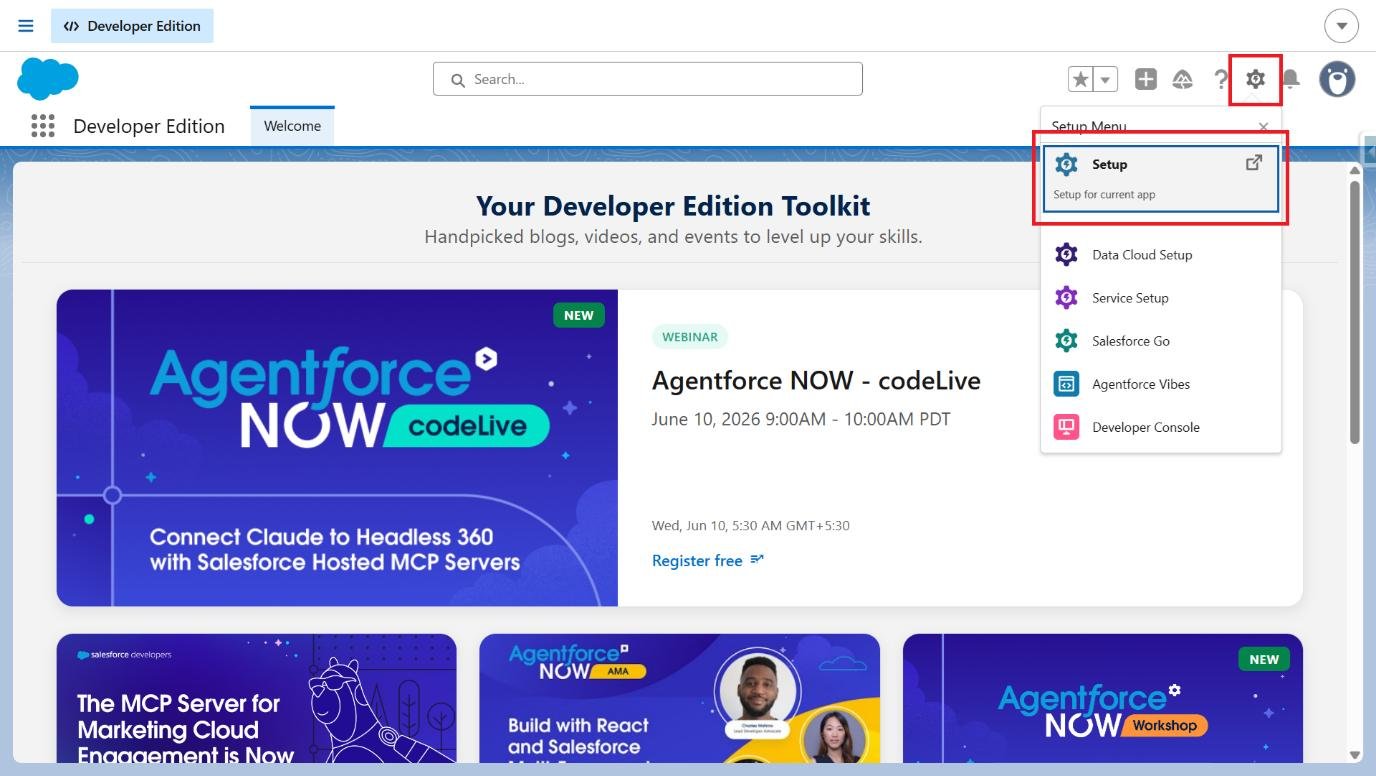
Open Setup
-
Navigate to Object Manager.
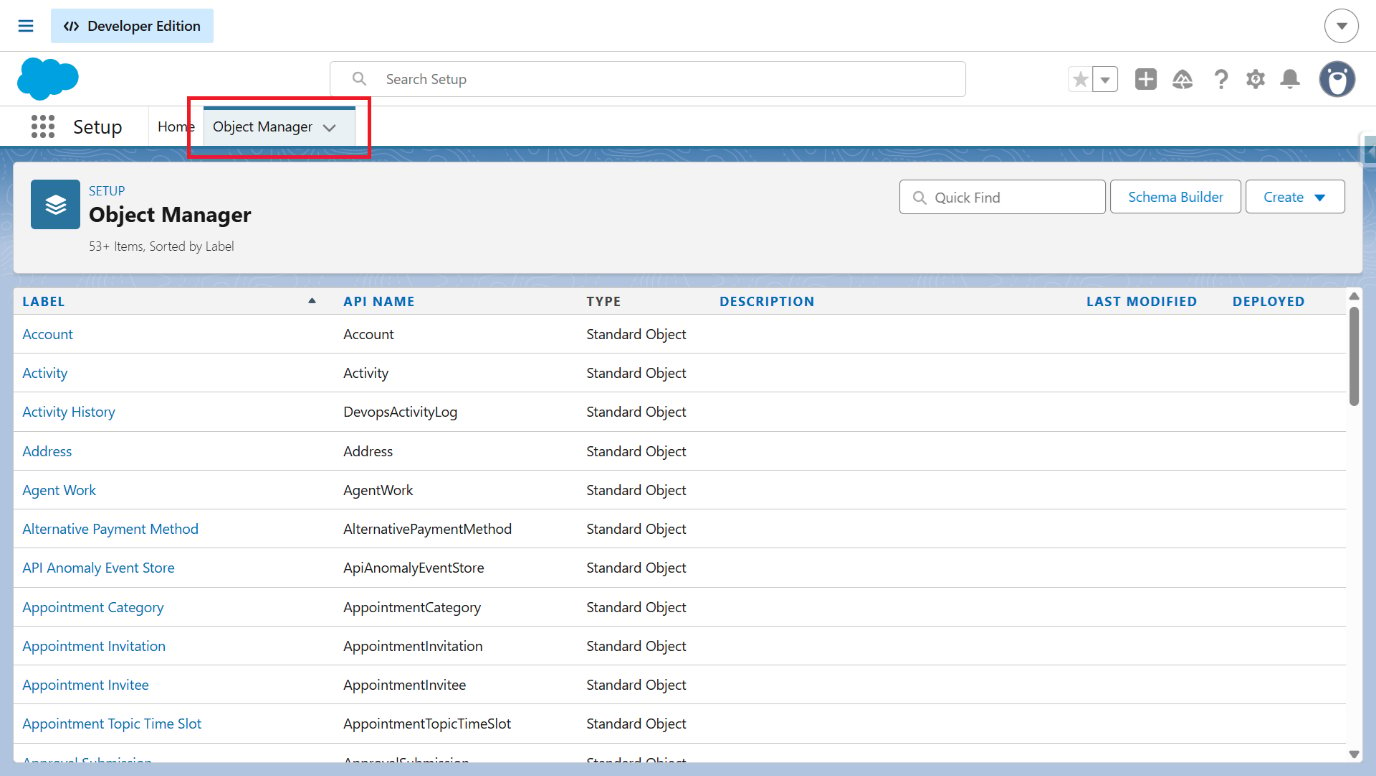
Open Object Manager
-
In Quick Find, search for Lead and select Lead.
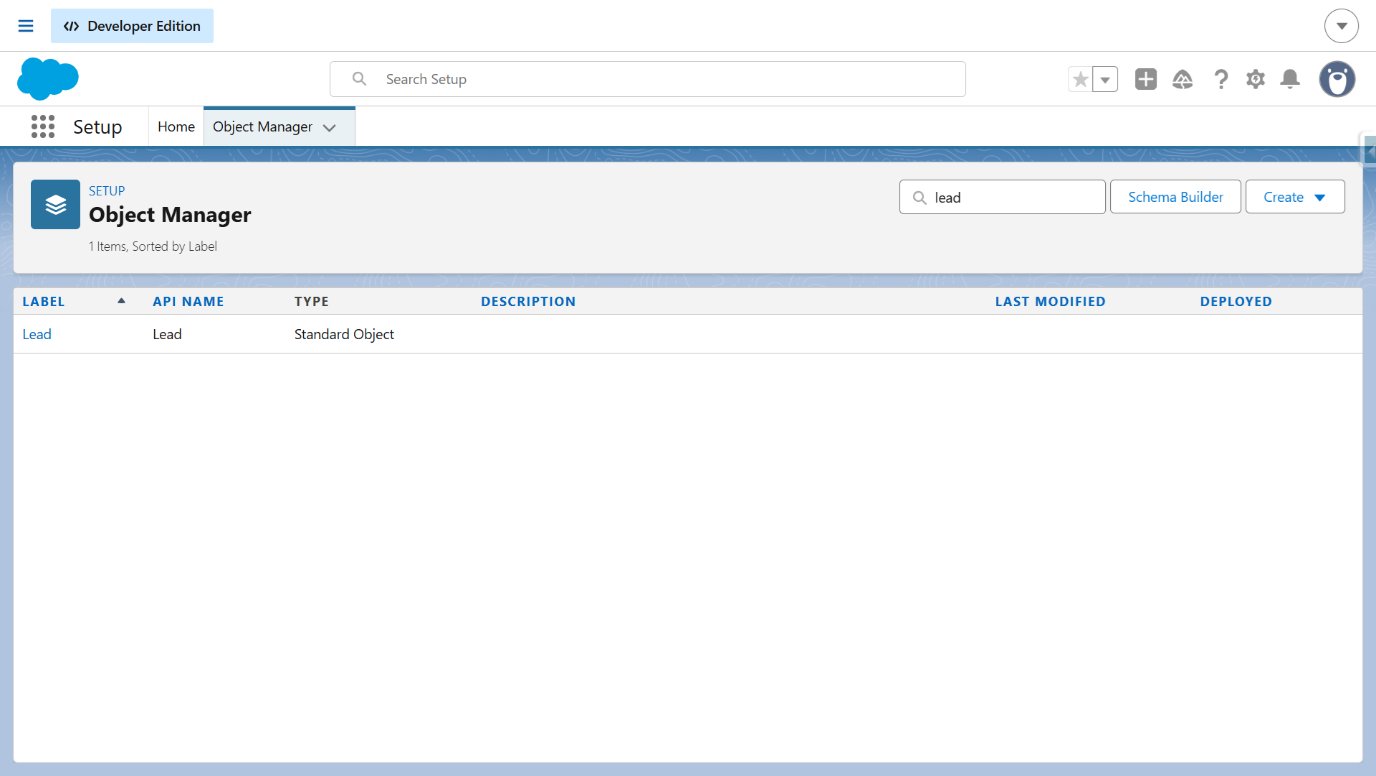
Select the Lead object
-
Click Fields & Relationships.
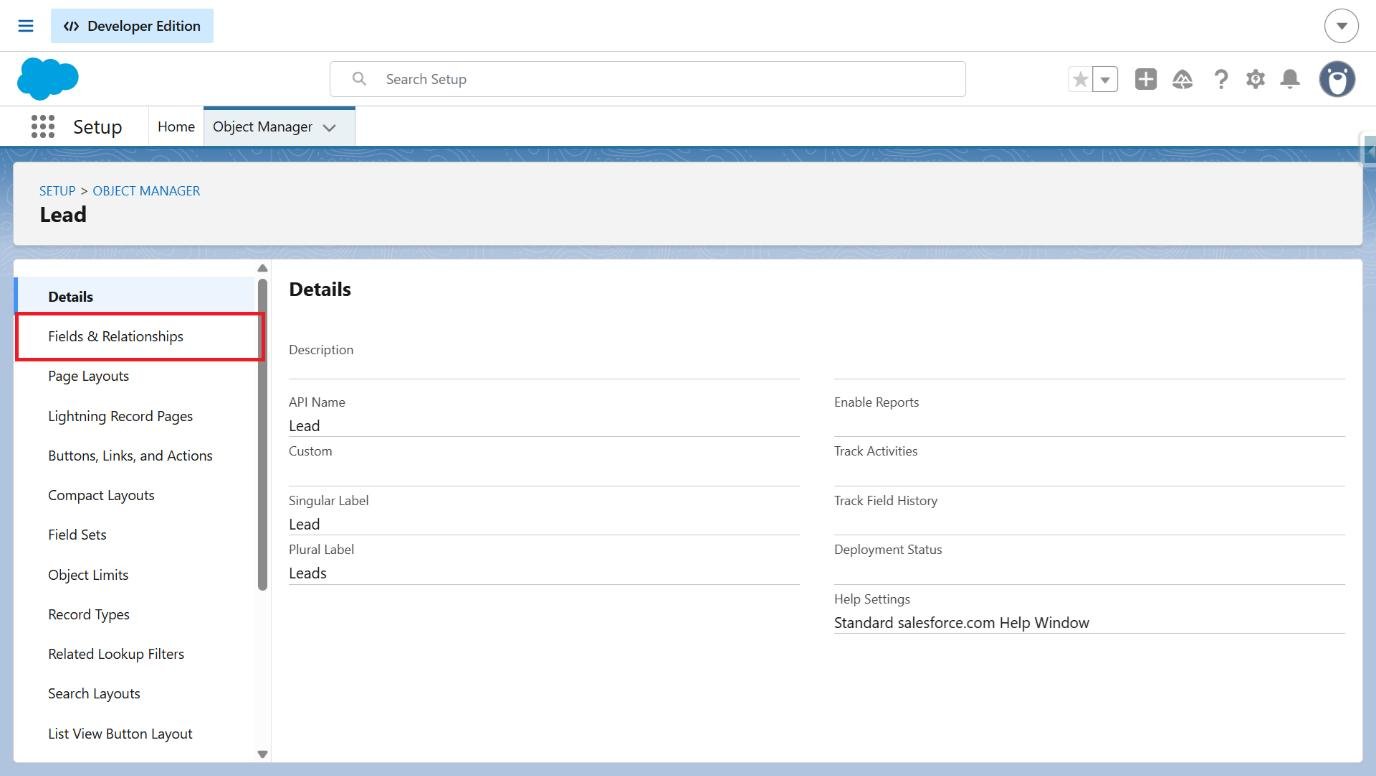
Open Fields and Relationships
-
Select Map Lead Fields.
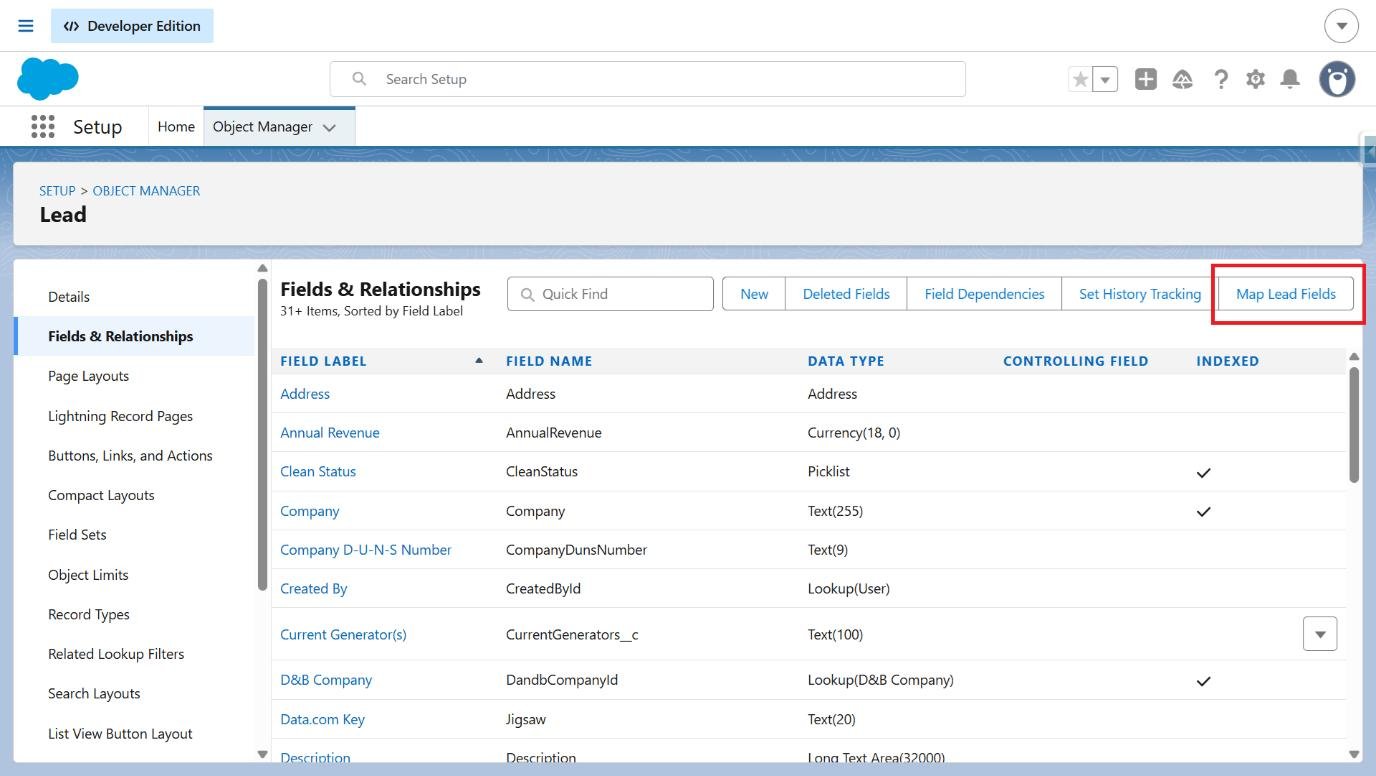
Open Map Lead Fields
-
Open the Opportunity tab.
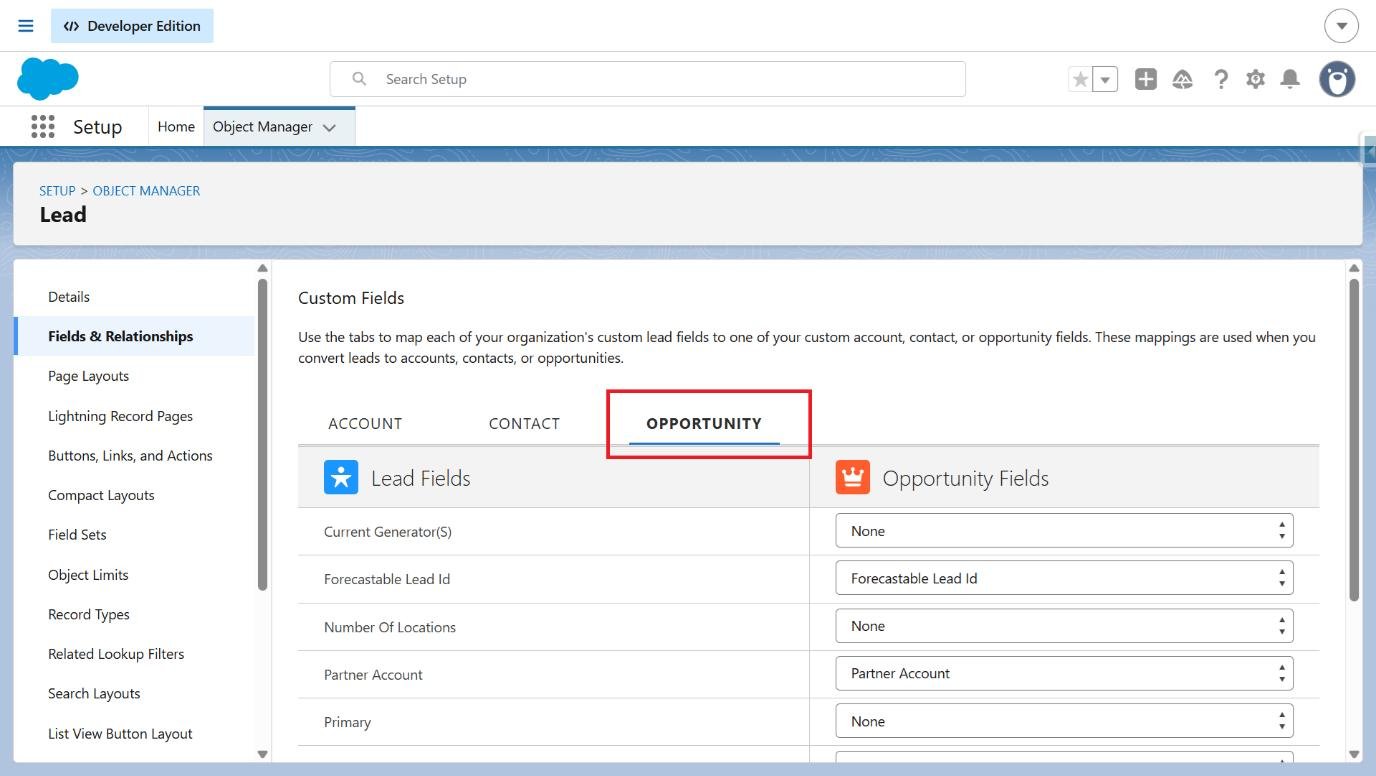
Open the Opportunity mapping tab
-
Configure these field mappings:
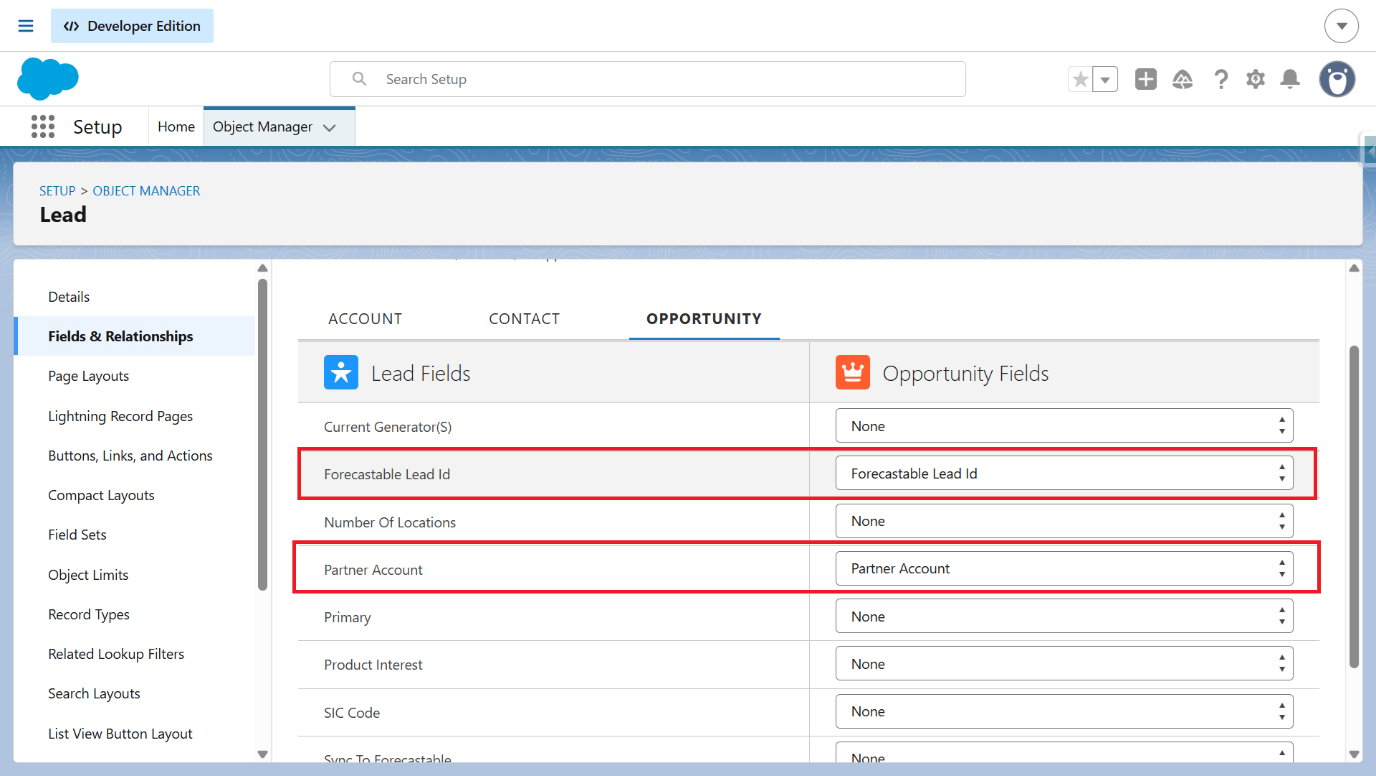
Map Forecastable Lead fields to Opportunity fields
-
Click Save to apply the field mappings.
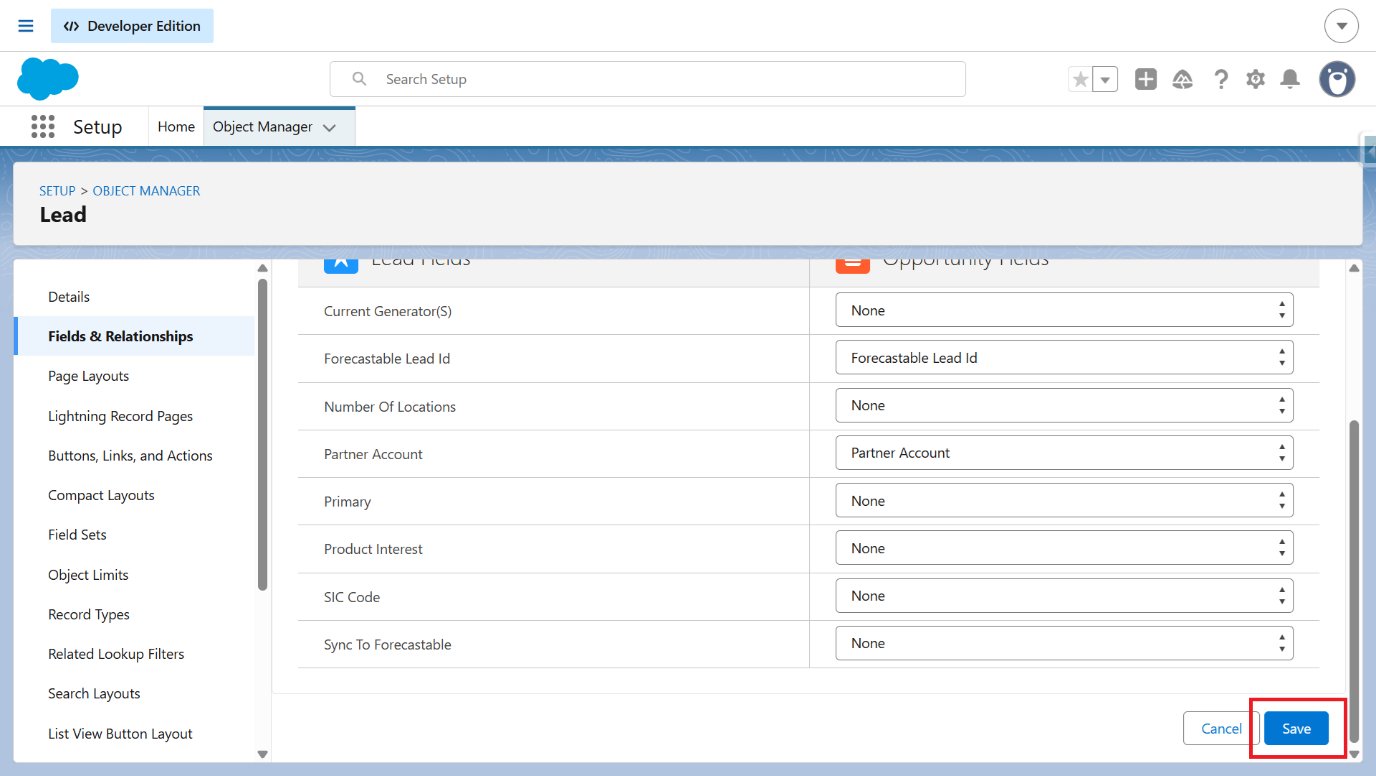
Save the Lead field mappings
Verify the setup
After completing the field mapping, converting a Lead to an Opportunity carries over Forecastable Lead Id and Partner Account.Troubleshooting
Forecastable Lead Id or Partner Account is empty after Lead conversion
Forecastable Lead Id or Partner Account is empty after Lead conversion
Re-open Setup → Object Manager → Lead → Fields & Relationships → Map Lead Fields, select the Opportunity tab, and confirm both fields are mapped to their matching Opportunity fields before saving again.