

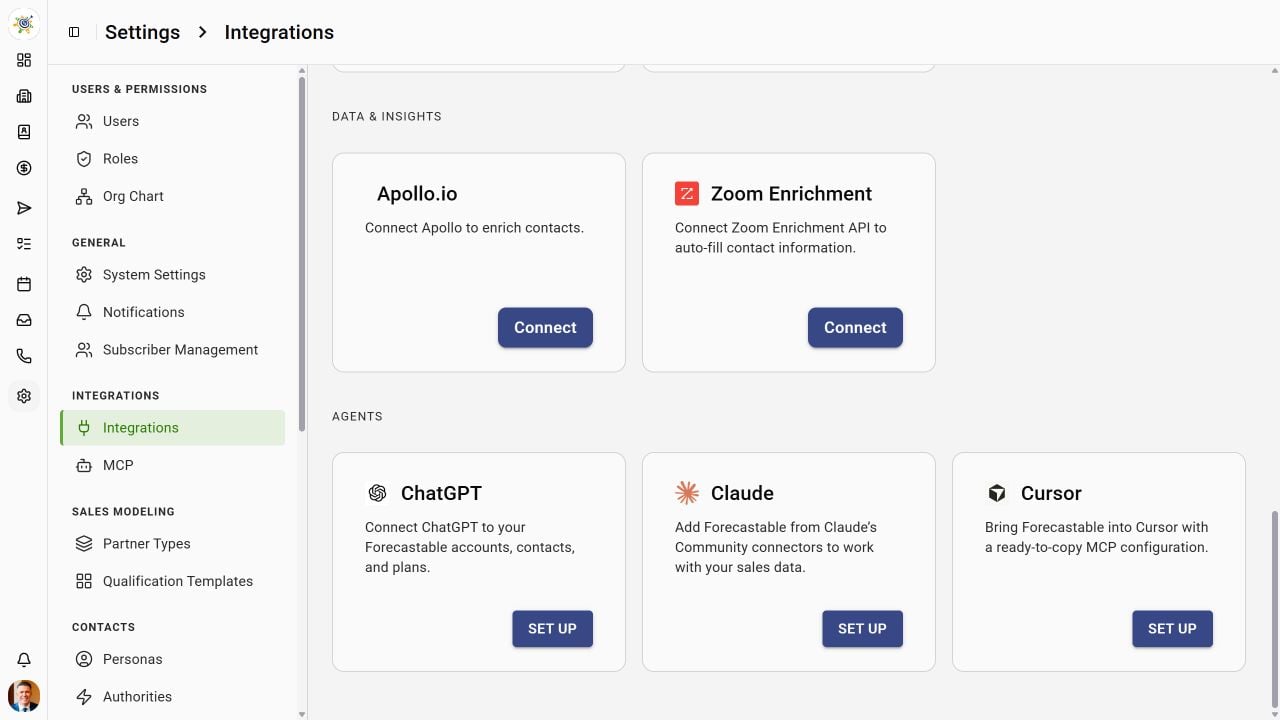
Agent setup links in Forecastable
Add the JSON configuration
1
Open your MCP configuration
For one project, open or create
.cursor/mcp.json in the project folder. For all projects, use ~/.cursor/mcp.json in your home directory (on Windows, %USERPROFILE%\.cursor\mcp.json).2
Add Forecastable
Paste this configuration and save the file. If you already have MCP servers, add only the
forecastable entry inside your existing mcpServers object.3
Sign in
Find Forecastable in Cursor’s MCP server controls and start its login flow. Cursor discovers Forecastable’s OAuth settings and registers the client automatically. Sign in to Forecastable in the browser, review the requested access, and select Allow.
4
Verify the tools
Confirm Forecastable is enabled and its tools are available. In Cursor Agent, ask: “Use Forecastable to list my organizations. Ask me which organization to use, then list five accounts from it.” Review tool requests when Cursor prompts you.
Troubleshooting
Forecastable does not appear
Forecastable does not appear
Check that the file is named
mcp.json, that the JSON is valid, and that forecastable is
inside mcpServers. Reopen Cursor after saving if it has not picked up the change. Your
organization may restrict which MCP servers you can use.Cursor reports missing organization context
Cursor reports missing organization context
Single-organization users receive an automatic default. If an organization is missing, the
error lists accessible names and IDs; retry with
params.organizationId. With multiple
organizations, use setActiveOrganization to save your choice across reconnects and new chats
on the same token.Sign-in fails
Sign-in fails
Confirm the URL is
https://app.forecastable.com/mcp and retry the login flow. If you need a
static token instead, follow the API key connection example.Disconnect
Disable Forecastable in Cursor or remove its entry frommcpServers to stop loading its tools.
See Cursor’s MCP documentation for current configuration and client controls.