

Connect Avoma
Any Forecastable user can connect Avoma with an API key.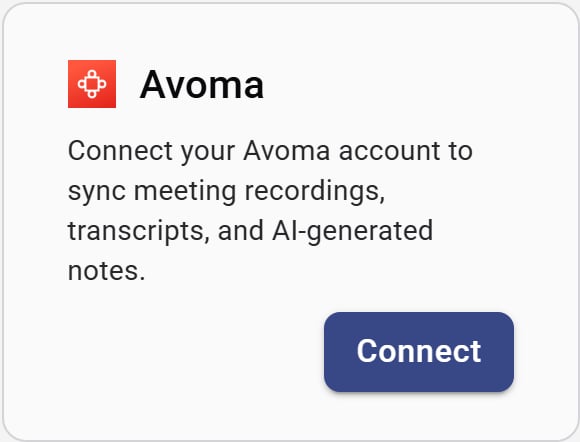
Avoma integration card
- On the Avoma card, click Connect.
- Enter your Avoma API Key.
- Click Connect.
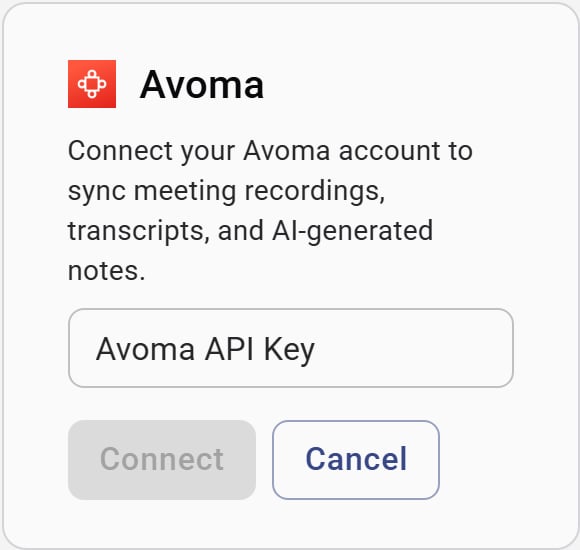
Enter your Avoma API key
Sync meetings
After Avoma is connected, use Sync Data on the card to import meetings for a date range:- Click Sync Data.
- Choose From and To dates (defaults to the last 30 days through today).
- Click Start Sync.
Disconnect
Use Disconnect on the Avoma card to remove the connection and hide the sync panel.Verify the setup
- The Avoma card shows Disconnect and Sync Data
- A sync completes without API key errors
- Meeting content appears where Forecastable shows call activity
Troubleshooting
Invalid API key
Invalid API key
Confirm you copied the full key from Avoma with no extra spaces, then try again. Generate a new key in Avoma if the current one was revoked.
Sync started but nothing appears
Sync started but nothing appears
Wait for the background import to finish, then widen the date range and run Start Sync again.