> ## Documentation Index
> Fetch the complete documentation index at: https://docs.forecastable.com/llms.txt
> Use this file to discover all available pages before exploring further.
# Salesforce integration
> Connect Salesforce in Forecastable, install the connector package, configure sync settings, and map Lead fields.
Connect Salesforce to sync accounts and partner lead/opportunity mappings into Forecastable. This guide covers the Forecastable connection flow and the required Lead field mapping.
## Connect Salesforce in Forecastable
Salesforce appears under **CRM** when your Forecastable organization has Salesforce configured.
Start on [Settings → Integrations](https://app.forecastable.com/settings/integrations).
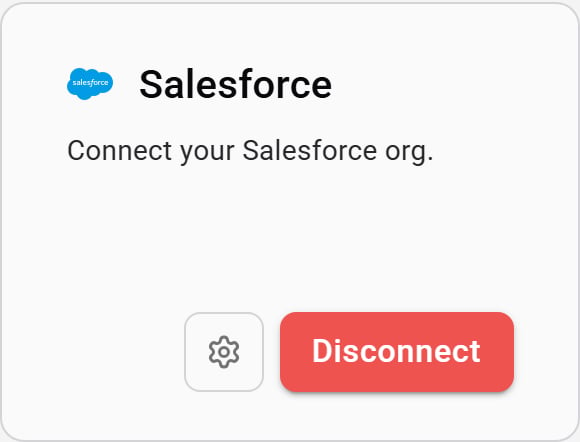 1. On the **Salesforce** card, click **Connect**.
2. Complete Salesforce login in the OAuth popup.
3. Click **Install package** for a new installation. If Forecastable detects an older package version, click **Update package** to install the current release.
4. After the package is installed, open **Salesforce settings** to configure partner account types, lead mapping, opportunity mapping, and account syncs.
1. On the **Salesforce** card, click **Connect**.
2. Complete Salesforce login in the OAuth popup.
3. Click **Install package** for a new installation. If Forecastable detects an older package version, click **Update package** to install the current release.
4. After the package is installed, open **Salesforce settings** to configure partner account types, lead mapping, opportunity mapping, and account syncs.
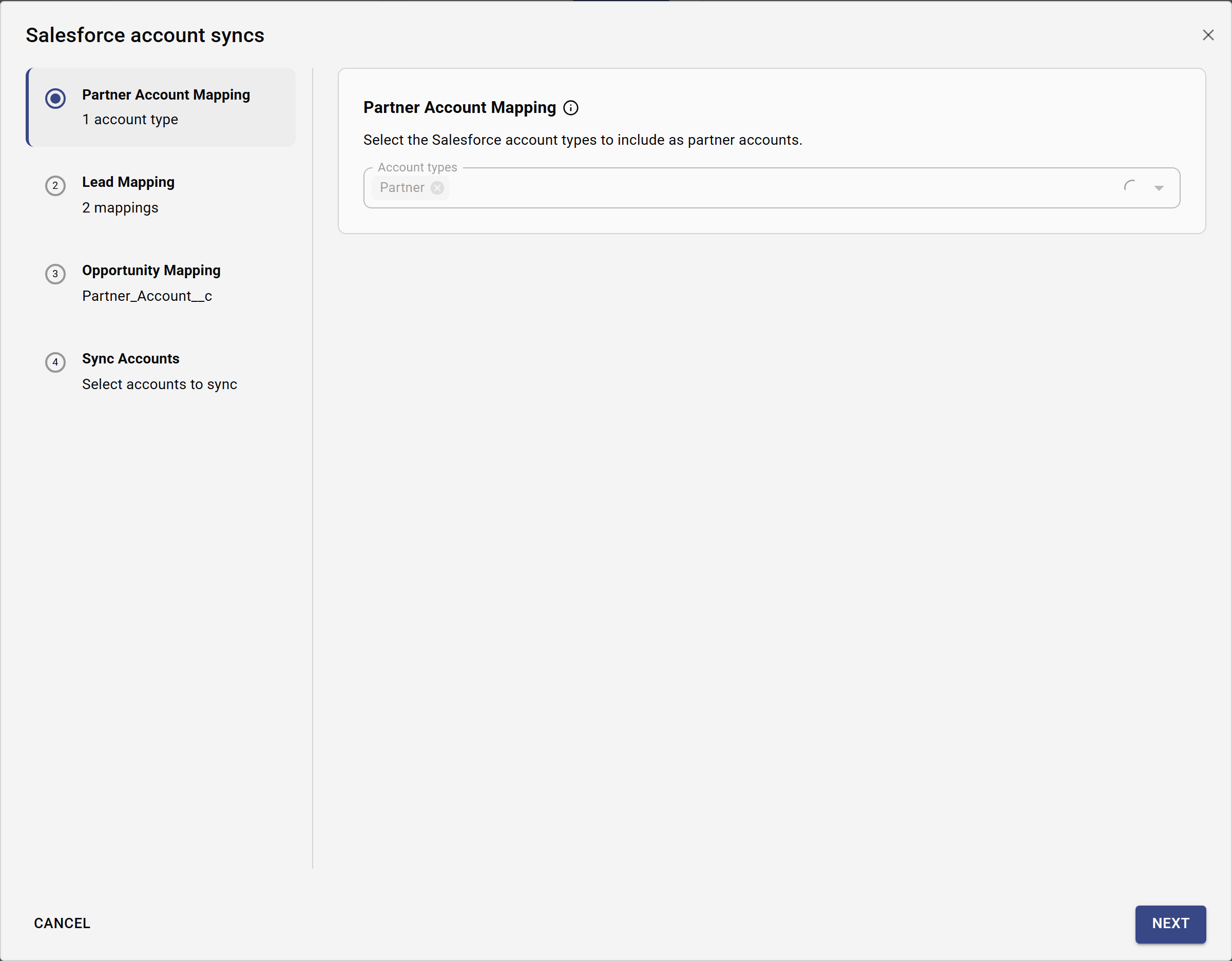 Disconnecting Salesforce also deletes Salesforce sync settings for the organization.
## Post-install steps in Salesforce
After the Forecastable connector package is installed, configure Lead field mapping so Lead conversion keeps Forecastable fields in sync.
### Before you start
Make sure you have:
* installed the Forecastable connector package in Salesforce
* Salesforce admin access (or enough access to manage Object Manager)
## Configure Lead field mapping (required)
Map Forecastable Lead fields to Opportunity fields so values carry over when a Lead is converted.
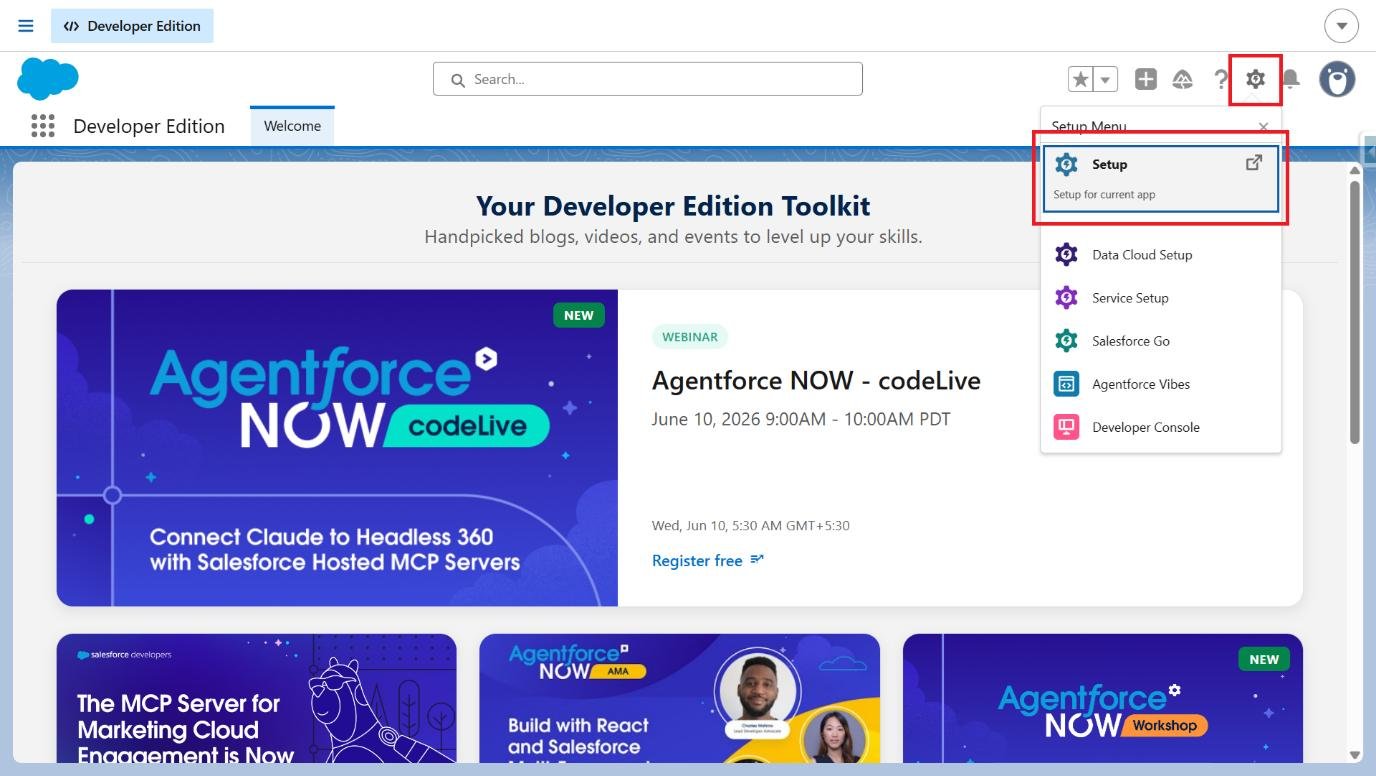
1. Click the **Setup** (gear) icon and open **Setup**.
Disconnecting Salesforce also deletes Salesforce sync settings for the organization.
## Post-install steps in Salesforce
After the Forecastable connector package is installed, configure Lead field mapping so Lead conversion keeps Forecastable fields in sync.
### Before you start
Make sure you have:
* installed the Forecastable connector package in Salesforce
* Salesforce admin access (or enough access to manage Object Manager)
## Configure Lead field mapping (required)
Map Forecastable Lead fields to Opportunity fields so values carry over when a Lead is converted.
1. Click the **Setup** (gear) icon and open **Setup**.
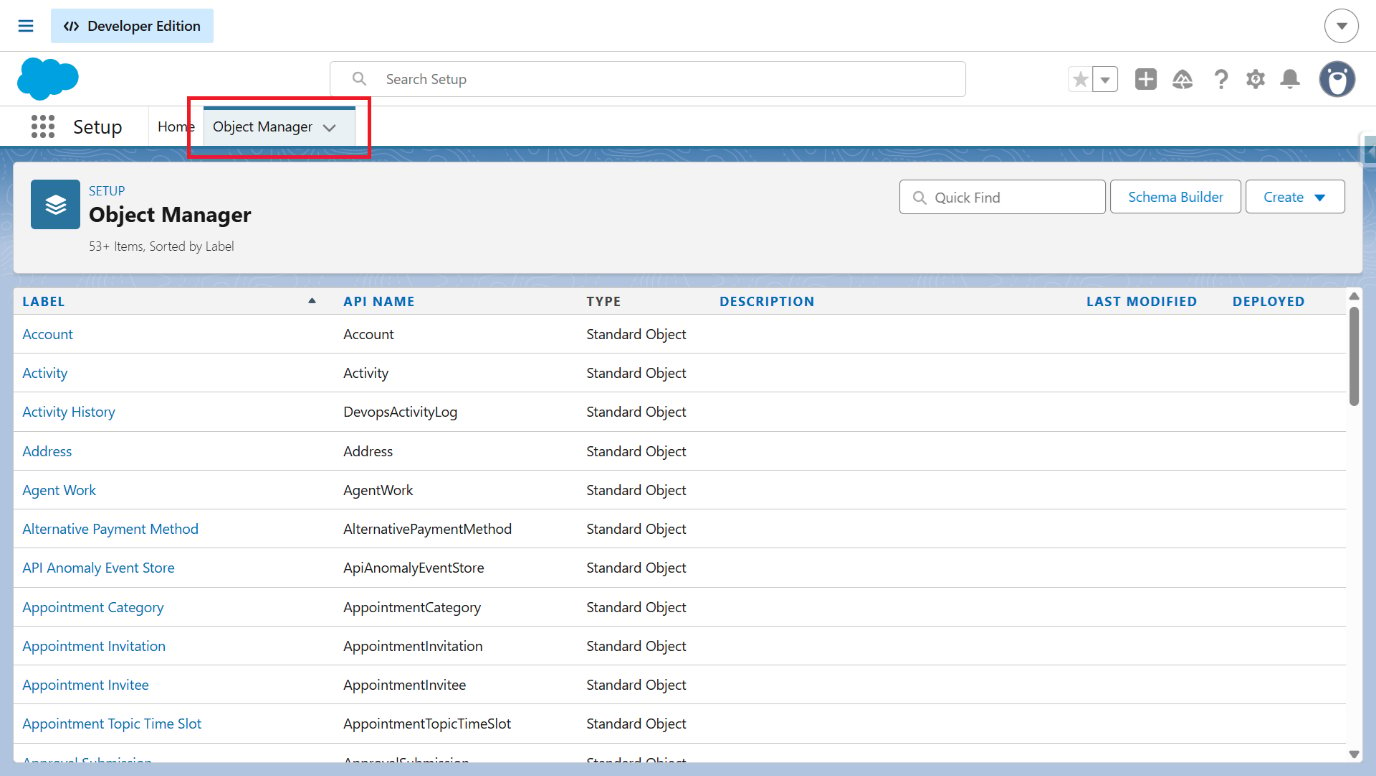
 2. Navigate to **Object Manager**.
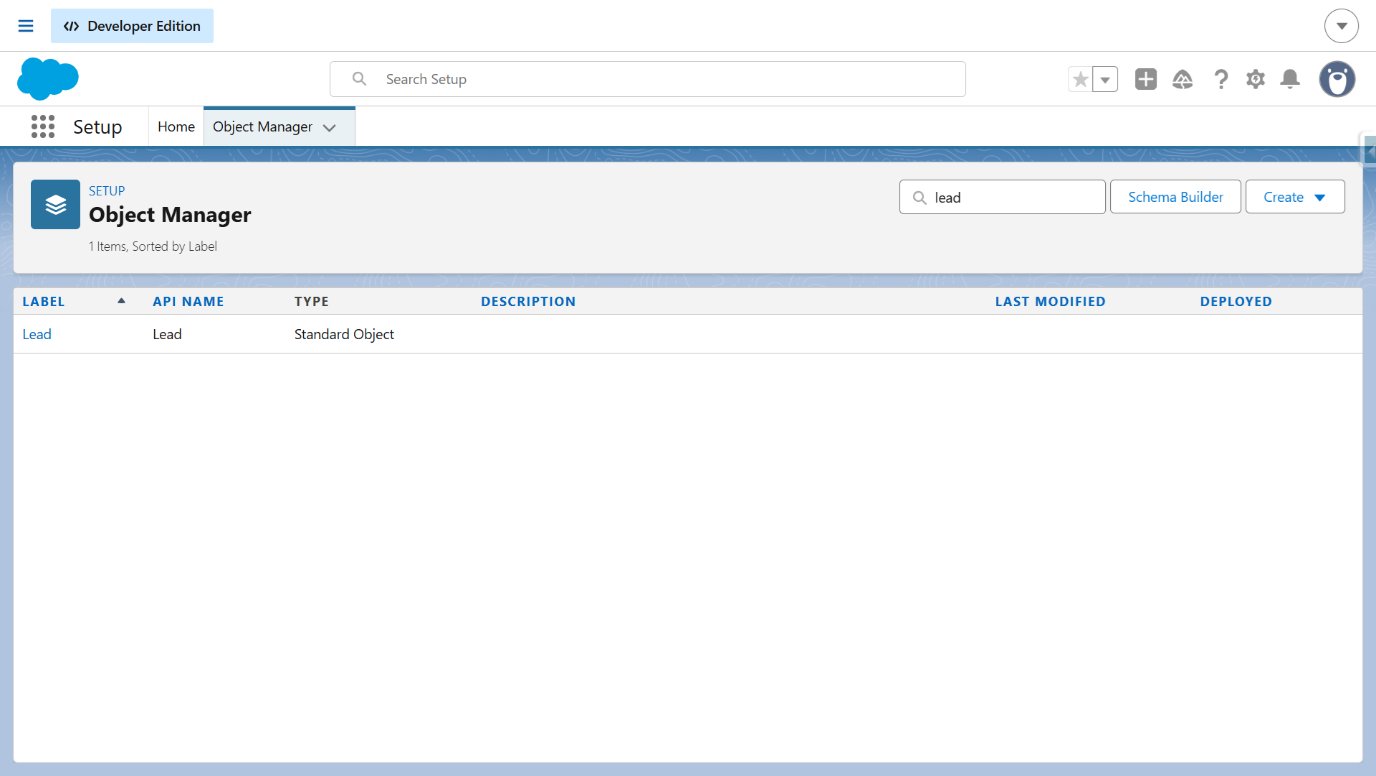
 3. In Quick Find, search for **Lead** and select **Lead**.
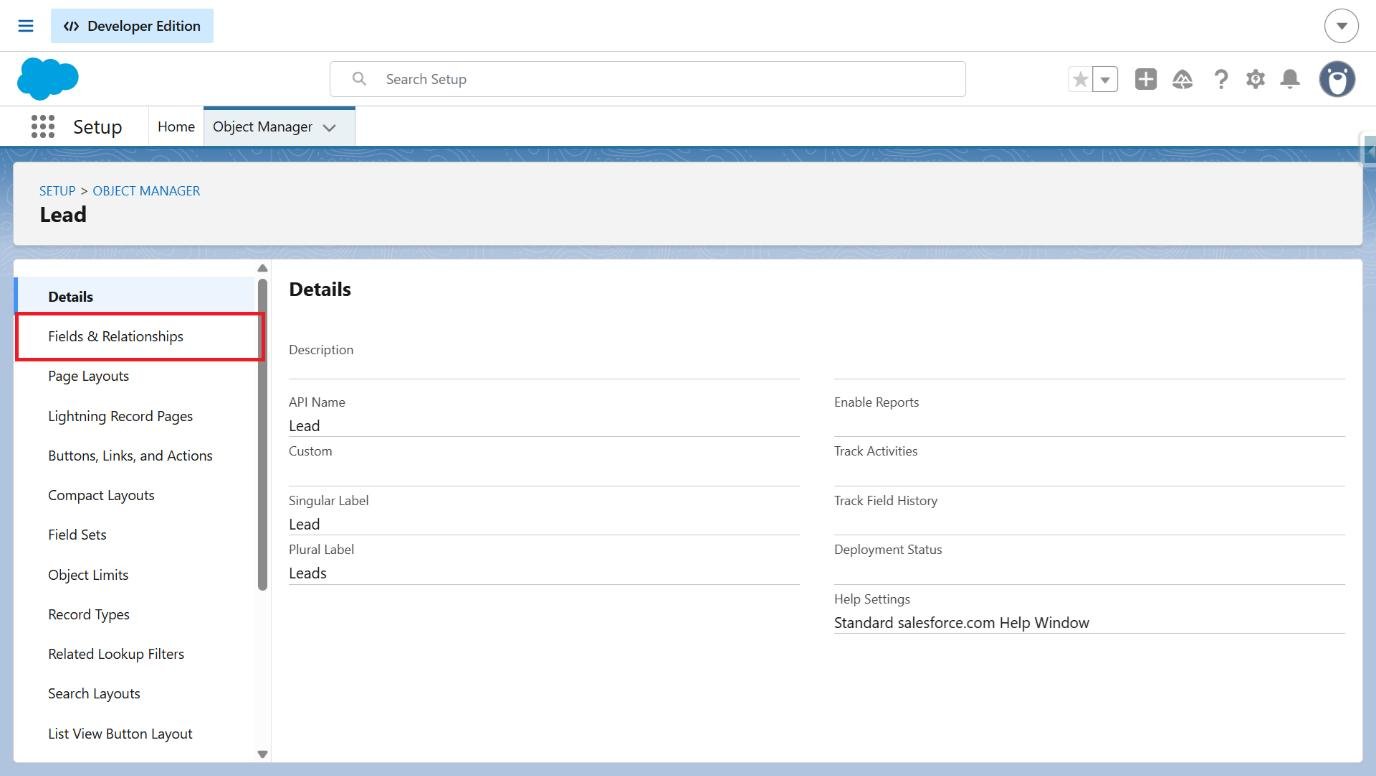
 4. Click **Fields & Relationships**.
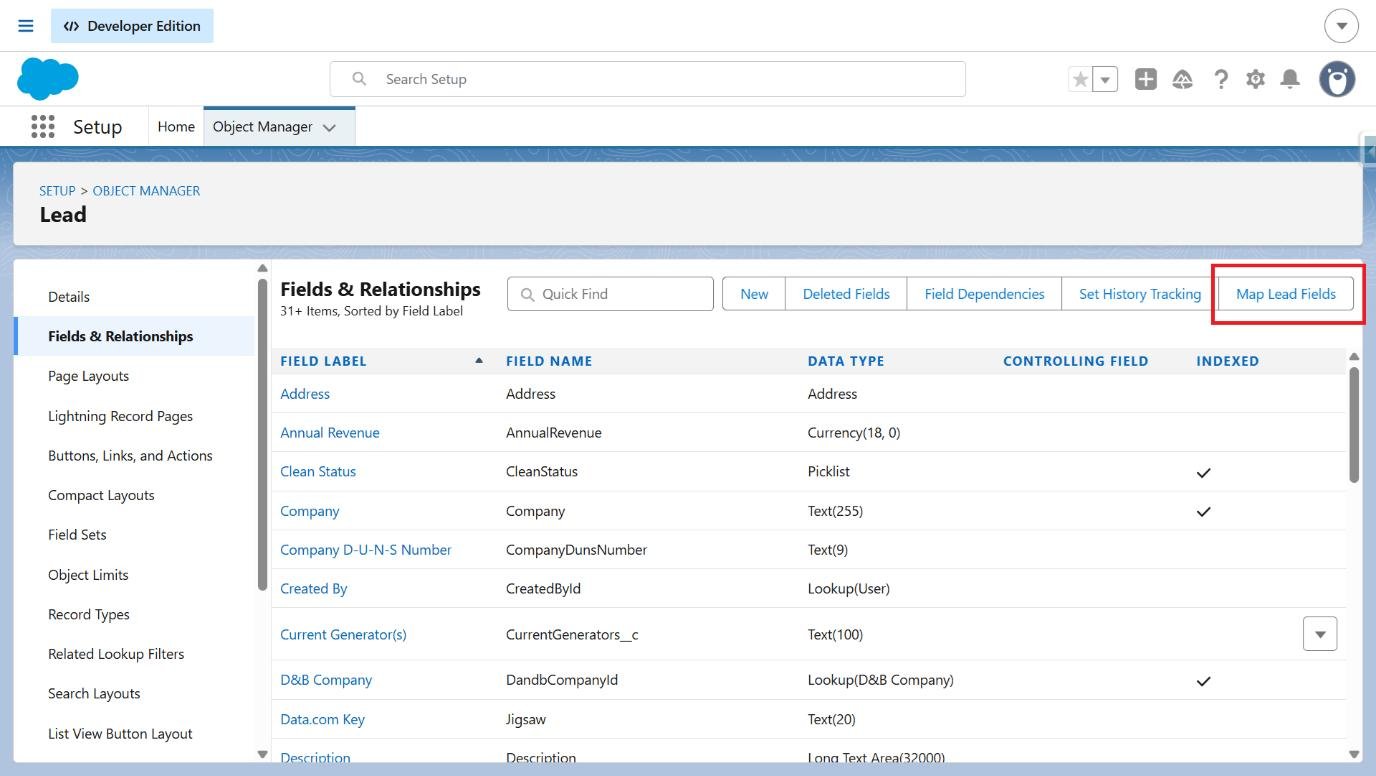
 5. Select **Map Lead Fields**.
 6. Open the **Opportunity** tab.
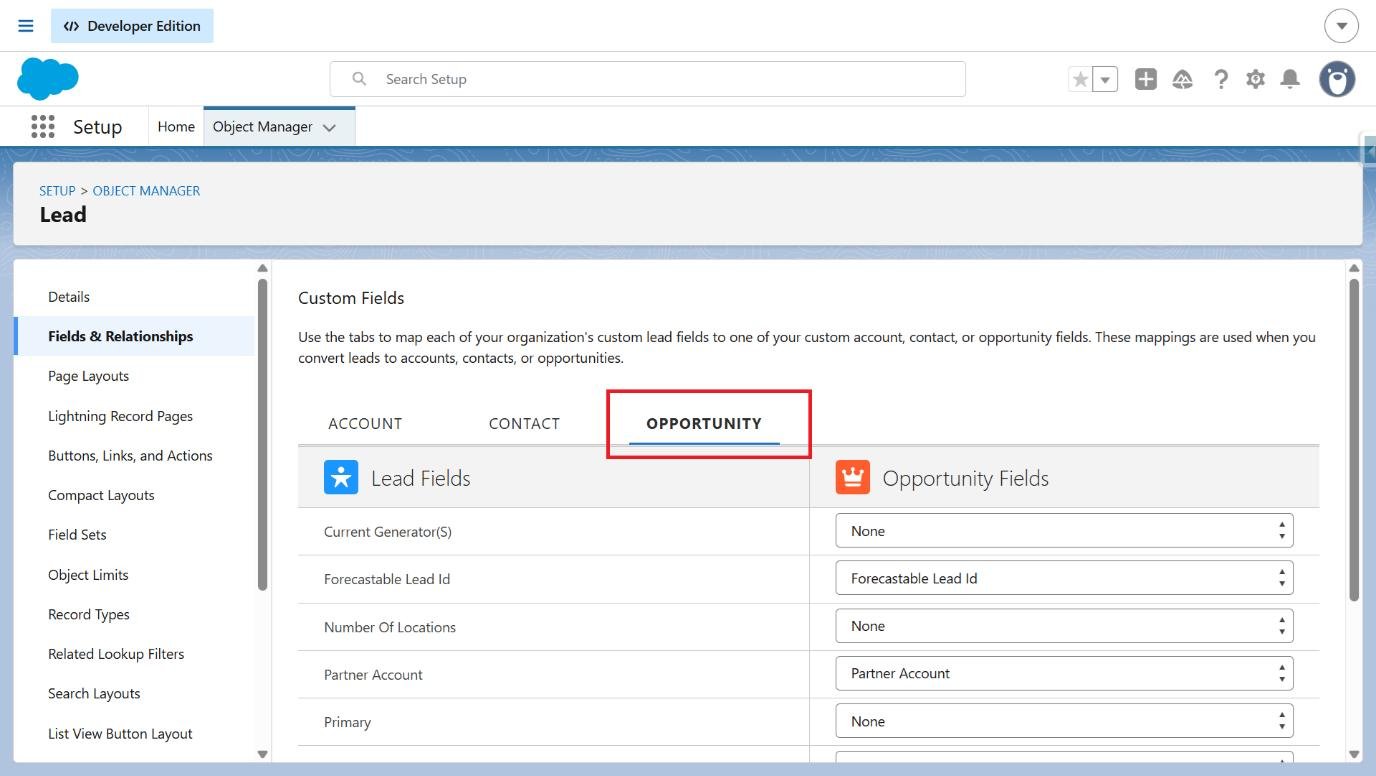 7. Configure these field mappings:
| Lead field | Opportunity field |
| -------------------- | -------------------- |
| Forecastable Lead Id | Forecastable Lead Id |
| Partner Account | Partner Account |
7. Configure these field mappings:
| Lead field | Opportunity field |
| -------------------- | -------------------- |
| Forecastable Lead Id | Forecastable Lead Id |
| Partner Account | Partner Account |
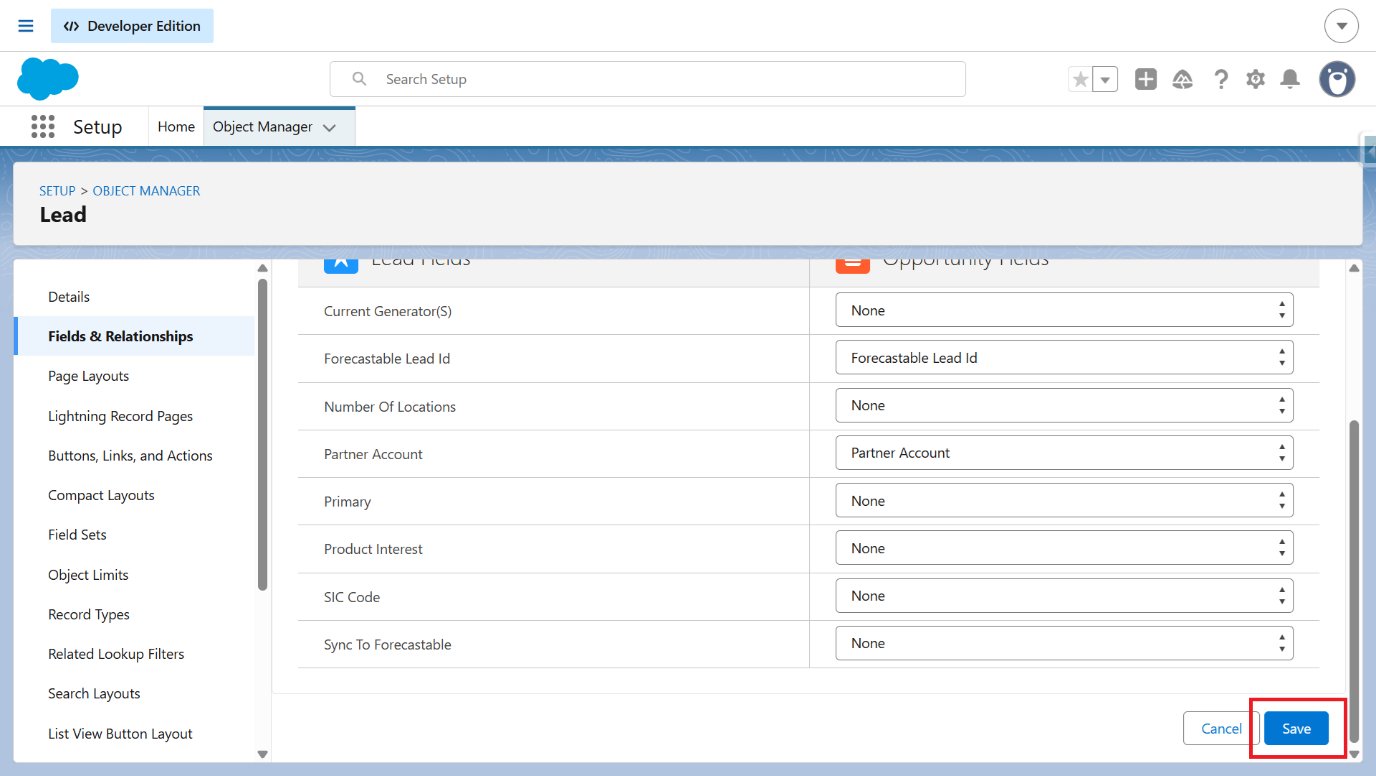
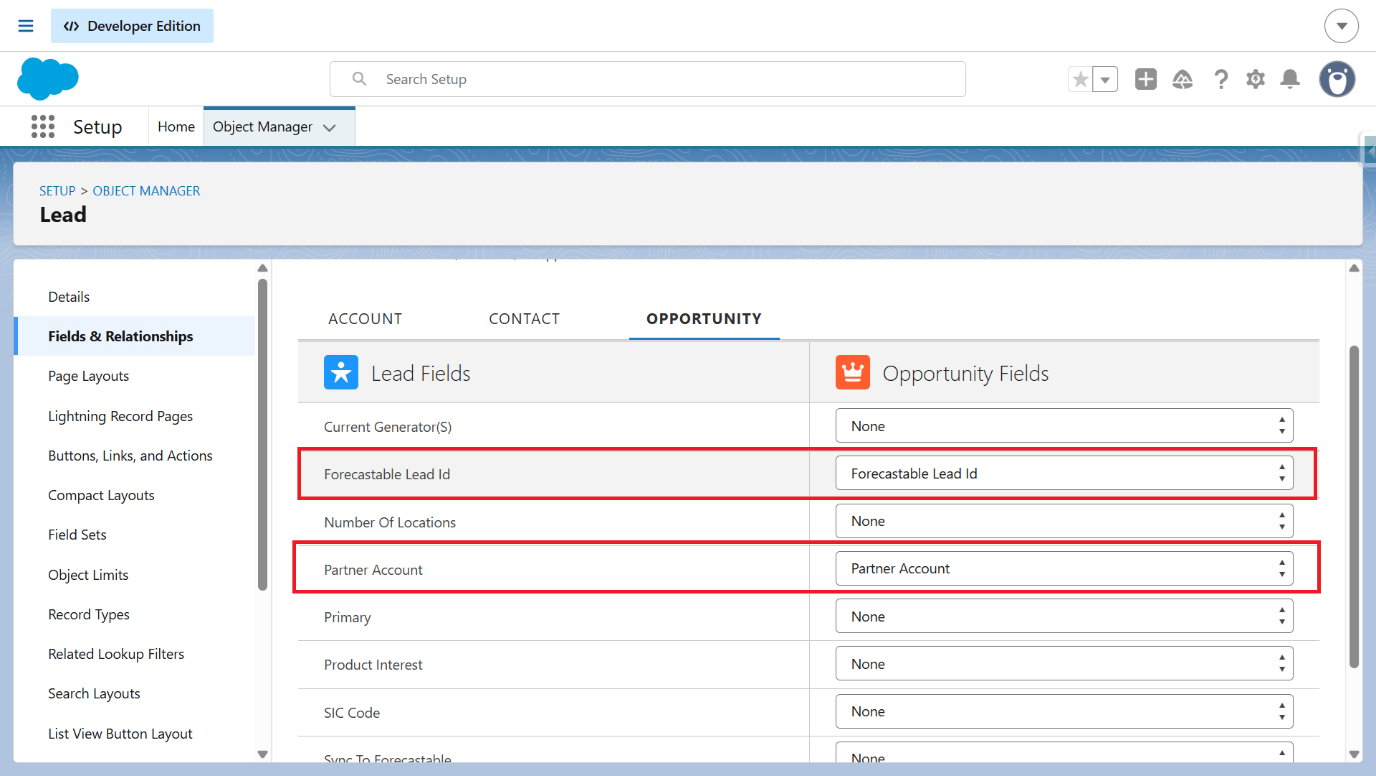 8. Click **Save** to apply the field mappings.
 ## Verify the setup
After completing the field mapping, converting a Lead to an Opportunity carries over **Forecastable Lead Id** and **Partner Account**.
## Troubleshooting
Re-open **Setup → Object Manager → Lead → Fields & Relationships → Map Lead Fields**, select the **Opportunity** tab, and confirm both fields are mapped to their matching Opportunity fields before saving again.
## Verify the setup
After completing the field mapping, converting a Lead to an Opportunity carries over **Forecastable Lead Id** and **Partner Account**.
## Troubleshooting
Re-open **Setup → Object Manager → Lead → Fields & Relationships → Map Lead Fields**, select the **Opportunity** tab, and confirm both fields are mapped to their matching Opportunity fields before saving again.