> ## Documentation Index
> Fetch the complete documentation index at: https://docs.forecastable.com/llms.txt
> Use this file to discover all available pages before exploring further.
# Microsoft 365 email integration
> Connect Microsoft 365 so Forecastable can power email features for your account.
Connect your Microsoft 365 account to enable email-powered features in Forecastable.
Start on [Settings → Integrations](https://app.forecastable.com/settings/integrations).
## Connect Microsoft 365
Any Forecastable user can connect their own Microsoft account.
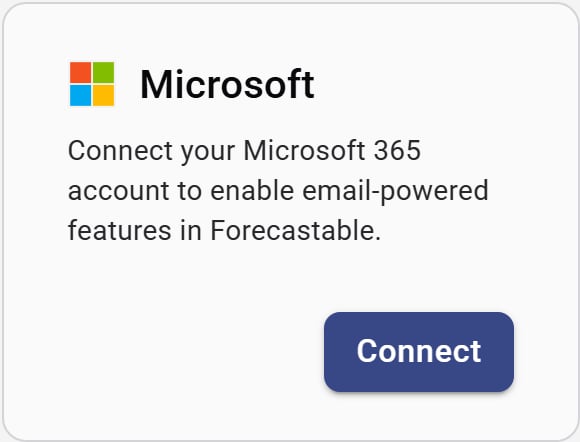 1. On the **Microsoft** card, click **Connect**.
2. Sign in with Microsoft and approve the requested permissions.
3. When authorization finishes, Forecastable returns you to Integrations with Microsoft connected.
This connector is for Microsoft 365 email. For Teams chat sync, use the [Microsoft Teams](/integrations/teams) integration.
## Disconnect
Use **Disconnect** on the Microsoft card to remove the connection.
## Verify the setup
* The Microsoft card shows **Disconnect**
* Email features that require a connected mailbox work for your user
## Troubleshooting
Confirm your Microsoft 365 admin allows the Forecastable / Nylas application. Retry **Connect** after consent is granted.
Use [Gmail](/integrations/gmail) or [IMAP](/integrations/imap) instead.
1. On the **Microsoft** card, click **Connect**.
2. Sign in with Microsoft and approve the requested permissions.
3. When authorization finishes, Forecastable returns you to Integrations with Microsoft connected.
This connector is for Microsoft 365 email. For Teams chat sync, use the [Microsoft Teams](/integrations/teams) integration.
## Disconnect
Use **Disconnect** on the Microsoft card to remove the connection.
## Verify the setup
* The Microsoft card shows **Disconnect**
* Email features that require a connected mailbox work for your user
## Troubleshooting
Confirm your Microsoft 365 admin allows the Forecastable / Nylas application. Retry **Connect** after consent is granted.
Use [Gmail](/integrations/gmail) or [IMAP](/integrations/imap) instead.