> ## Documentation Index
> Fetch the complete documentation index at: https://docs.forecastable.com/llms.txt
> Use this file to discover all available pages before exploring further.
# LinkedIn integration
> Connect LinkedIn so Forecastable can send connection requests and direct messages.
Connect LinkedIn to enable connection requests and direct messages from Forecastable Engage.
Start on [Settings → Integrations](https://app.forecastable.com/settings/integrations).
## Connect LinkedIn
Any Forecastable user can connect their own LinkedIn account.
 1. On the **LinkedIn** card, click **Connect**.
2. Complete the LinkedIn authentication flow.
3. When it succeeds, Forecastable returns you to Integrations with LinkedIn connected.
You can also open Integrations from your profile if LinkedIn is not connected yet.
## Disconnect
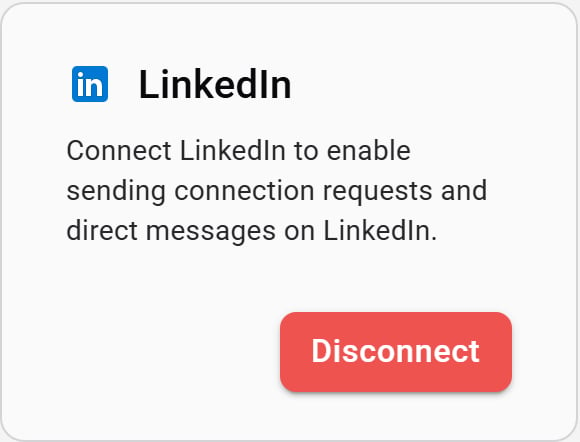
Use **Disconnect** on the LinkedIn card to remove the connection.
## Verify the setup
* The LinkedIn card shows **Disconnect**
* Engage LinkedIn steps can send connection requests or messages with your connected account
## Troubleshooting
Forecastable shows an error toast when auth fails. Click **Connect** again and finish the LinkedIn login without closing the window early.
Refresh Integrations and wait a few seconds—status can take a moment to update after the redirect.
1. On the **LinkedIn** card, click **Connect**.
2. Complete the LinkedIn authentication flow.
3. When it succeeds, Forecastable returns you to Integrations with LinkedIn connected.
You can also open Integrations from your profile if LinkedIn is not connected yet.
## Disconnect
Use **Disconnect** on the LinkedIn card to remove the connection.
## Verify the setup
* The LinkedIn card shows **Disconnect**
* Engage LinkedIn steps can send connection requests or messages with your connected account
## Troubleshooting
Forecastable shows an error toast when auth fails. Click **Connect** again and finish the LinkedIn login without closing the window early.
Refresh Integrations and wait a few seconds—status can take a moment to update after the redirect.