> ## Documentation Index
> Fetch the complete documentation index at: https://docs.forecastable.com/llms.txt
> Use this file to discover all available pages before exploring further.
# HubSpot integration
> Connect HubSpot as an admin, configure lead settings, and sync companies into Forecastable.
Connect HubSpot to sync partner leads and companies into Forecastable. HubSpot is available to Forecastable admins.
Start on [Settings → Integrations](https://app.forecastable.com/settings/integrations).
## Connect HubSpot
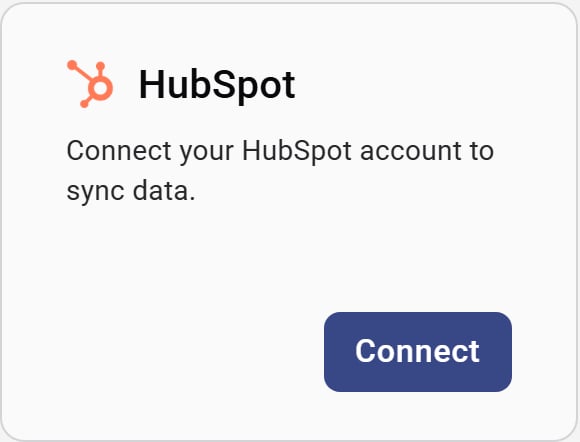 1. On the **HubSpot** card, click **Connect**.
2. Sign in to HubSpot and approve access for the portal you want to sync.
3. Forecastable returns you to Integrations with a success message and opens **HubSpot sync settings**.
One HubSpot portal can only be connected to one Forecastable account. If the portal is already linked elsewhere, disconnect it there first.
## Configure HubSpot sync settings
After connecting, open **Settings** on the HubSpot card any time. The dialog has two tabs.
### Lead settings
Complete Lead settings before account syncs.
1. Choose how you store leads in HubSpot:
* **Lead object** — standard HubSpot leads
* **Contact object** — standard HubSpot contacts treated as leads in Forecastable
2. Choose how leads associate to partner companies:
* **Associations** — match through HubSpot company associations, with optional property filters or an “Is Referral Partner” style checkbox filter
* **Partner dropdown field** — Forecastable creates or updates a HubSpot partner dropdown property and lets you map company options (including CSV/XLS import)
3. Click **Save and Continue**.
For partner dropdown mapping, options you save become active in HubSpot and cannot be removed from the mapping list later.
### Account syncs
After Lead settings are saved:
1. Optionally filter by **Company Types (HubSpot)** and click **Apply Filters**.
2. In **HubSpot Company Mapping**, search and select companies to sync.
3. Use **Synced Only**, Select All / Unselect All, and the chunk navigation as needed.
4. Click **SYNC** to apply add/remove changes for the current chunk.
## Disconnect
Click **Disconnect** on the HubSpot card and confirm. You can reconnect later and reconfigure sync settings.
## Verify the setup
* The HubSpot card shows **Settings** and **Disconnect**
* Lead settings are saved
* Selected companies show as synced in Account syncs
* Partner leads and companies appear in Forecastable
## Troubleshooting
Disconnect the portal from the other Forecastable account, or use a different HubSpot portal.
Finish and save **Lead settings** first. Account syncs unlock after lead configuration is complete.
Forecastable shows an error toast when the portal connection is revoked externally. Reconnect HubSpot from Integrations.
1. On the **HubSpot** card, click **Connect**.
2. Sign in to HubSpot and approve access for the portal you want to sync.
3. Forecastable returns you to Integrations with a success message and opens **HubSpot sync settings**.
One HubSpot portal can only be connected to one Forecastable account. If the portal is already linked elsewhere, disconnect it there first.
## Configure HubSpot sync settings
After connecting, open **Settings** on the HubSpot card any time. The dialog has two tabs.
### Lead settings
Complete Lead settings before account syncs.
1. Choose how you store leads in HubSpot:
* **Lead object** — standard HubSpot leads
* **Contact object** — standard HubSpot contacts treated as leads in Forecastable
2. Choose how leads associate to partner companies:
* **Associations** — match through HubSpot company associations, with optional property filters or an “Is Referral Partner” style checkbox filter
* **Partner dropdown field** — Forecastable creates or updates a HubSpot partner dropdown property and lets you map company options (including CSV/XLS import)
3. Click **Save and Continue**.
For partner dropdown mapping, options you save become active in HubSpot and cannot be removed from the mapping list later.
### Account syncs
After Lead settings are saved:
1. Optionally filter by **Company Types (HubSpot)** and click **Apply Filters**.
2. In **HubSpot Company Mapping**, search and select companies to sync.
3. Use **Synced Only**, Select All / Unselect All, and the chunk navigation as needed.
4. Click **SYNC** to apply add/remove changes for the current chunk.
## Disconnect
Click **Disconnect** on the HubSpot card and confirm. You can reconnect later and reconfigure sync settings.
## Verify the setup
* The HubSpot card shows **Settings** and **Disconnect**
* Lead settings are saved
* Selected companies show as synced in Account syncs
* Partner leads and companies appear in Forecastable
## Troubleshooting
Disconnect the portal from the other Forecastable account, or use a different HubSpot portal.
Finish and save **Lead settings** first. Account syncs unlock after lead configuration is complete.
Forecastable shows an error toast when the portal connection is revoked externally. Reconnect HubSpot from Integrations.