> ## Documentation Index
> Fetch the complete documentation index at: https://docs.forecastable.com/llms.txt
> Use this file to discover all available pages before exploring further.
# Gong integration
> Connect Gong to Forecastable and control which calls are tracked with Automation Rules or Gong folders.
Forecastable gives you two ways to control how Gong call data is brought into the app:
1. **Gong Automation Rules (recommended).** In Gong, Automation Rules can send all calls or a filtered subset of calls to Forecastable. The filter criteria are configured in Gong and can include examples such as call participants, words or phrases, trackers, and call titles.
2. **Folders.** In Forecastable, you can select Gong folders to sync. Only calls in the selected folders are retrieved.
This guide walks through both options.
## Before you start
Make sure you have:
* access to Forecastable
* access to the Gong workspace you want to connect
* a Gong account with enough access to authenticate the integration
* an admin account in Gong if you plan to create Automation Rules
## Step 1: authenticate Gong in Forecastable
Start on the Forecastable integrations page:
[Open Forecastable integrations](https://app.forecastable.com/settings/integrations)
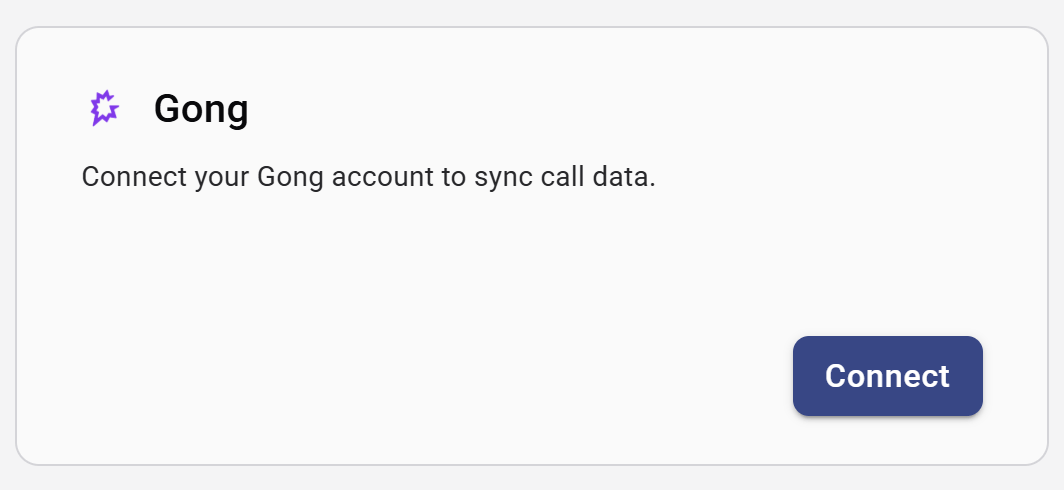
On the Gong card, click **Connect**.
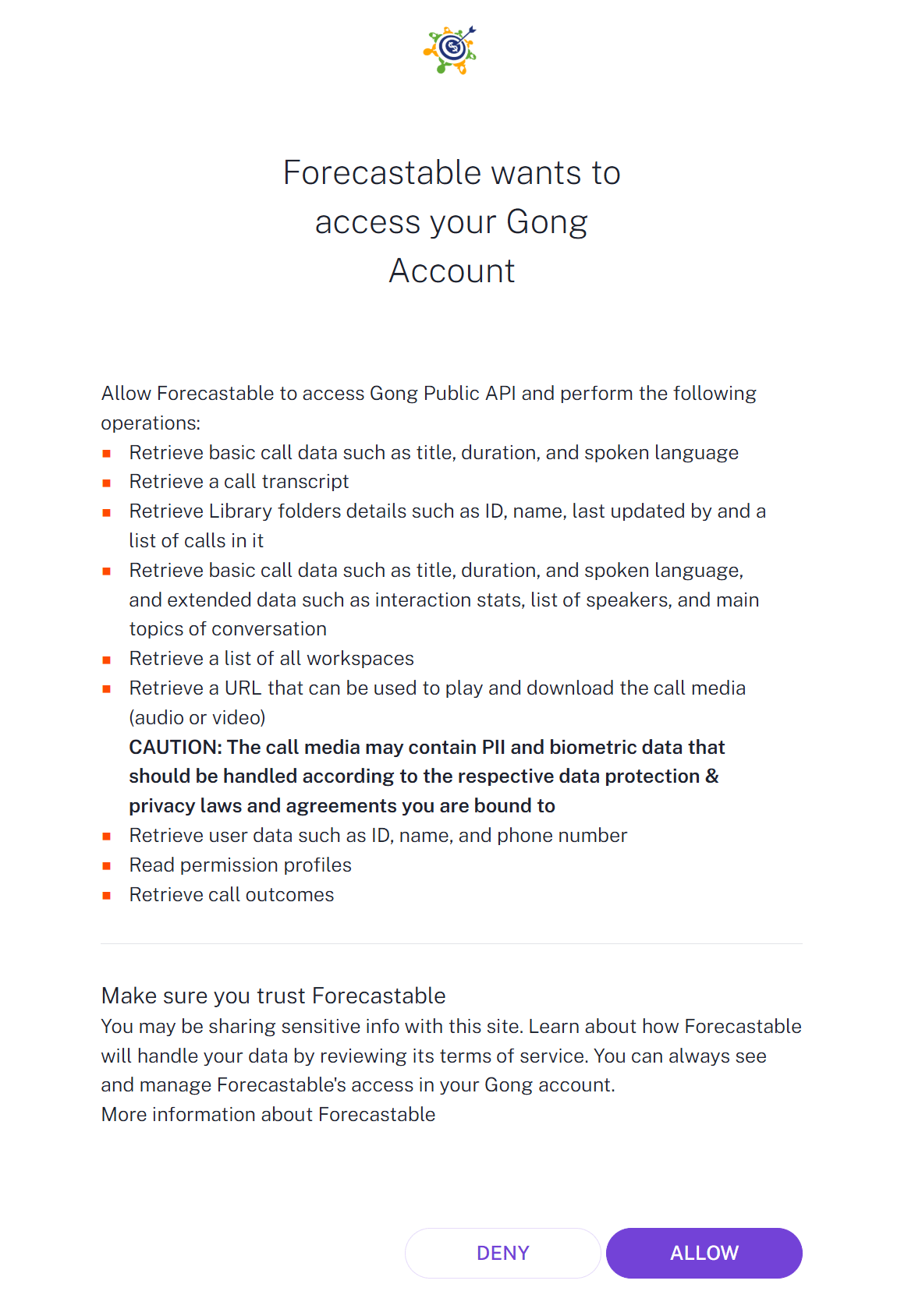
 Gong will then show its authorization screen. In the access screen shown below, Gong lists the categories Forecastable is requesting, including basic call data, call transcripts, library folder details, workspaces, media URLs, user data, permission profiles, and call outcomes.
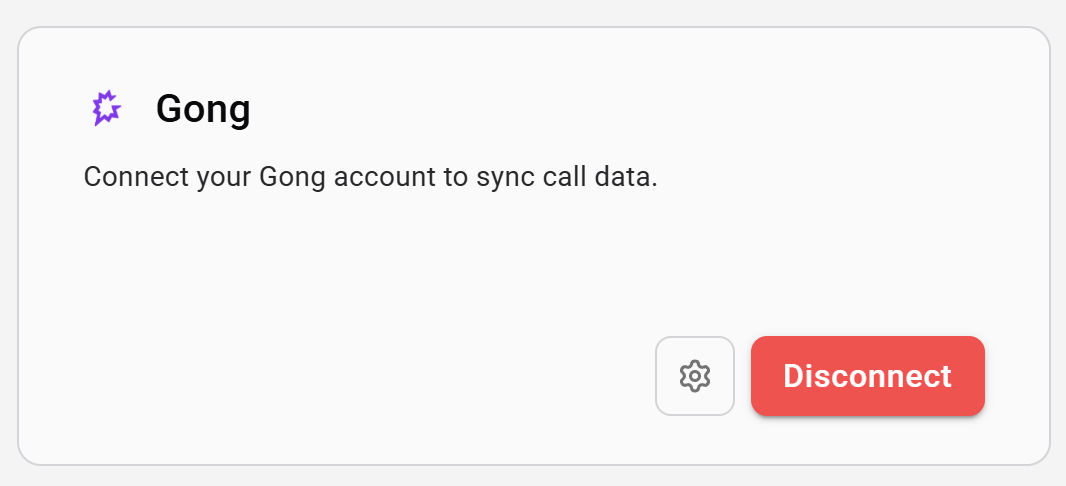
 After you approve access, you will be returned to Forecastable. The Gong card should now show as connected, with a settings icon and a **Disconnect** button.
 ## Step 2: open Gong settings and copy the webhook URL
Once connected, click the settings icon on the Gong integration card.
Inside the settings dialog, Forecastable shows a **Webhook URL (recommended)** and a **Sync folders** section.
## Step 2: open Gong settings and copy the webhook URL
Once connected, click the settings icon on the Gong integration card.
Inside the settings dialog, Forecastable shows a **Webhook URL (recommended)** and a **Sync folders** section.
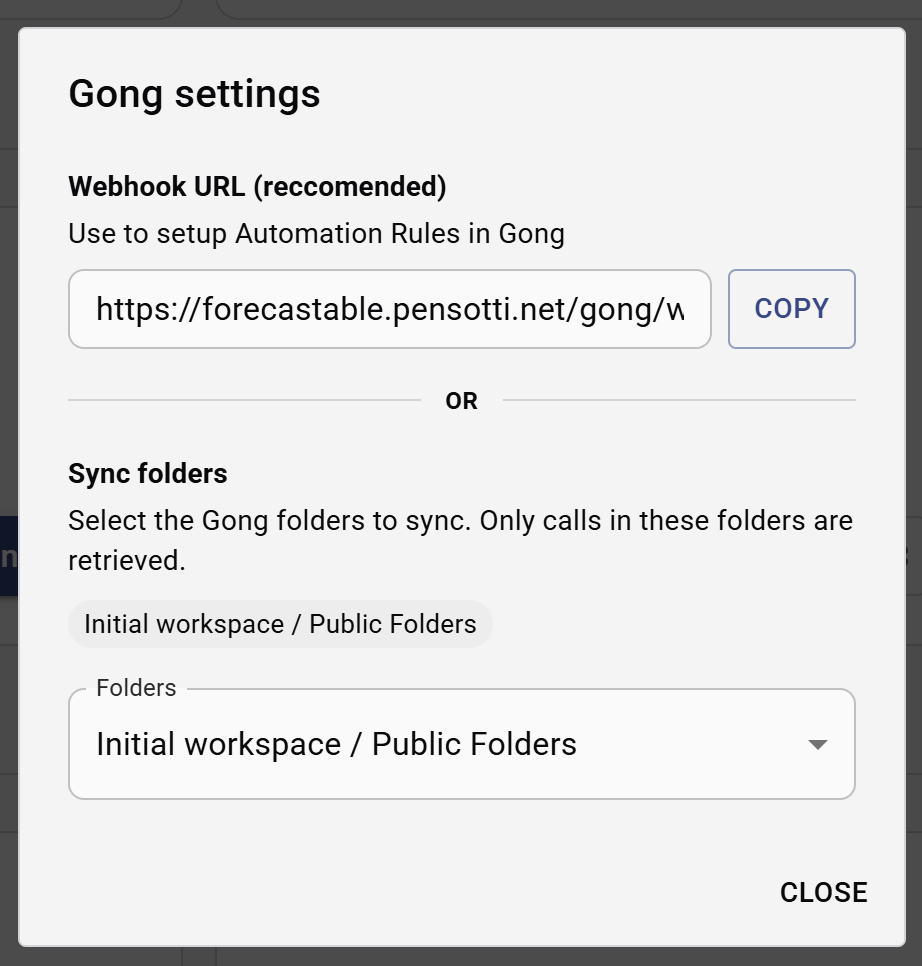 Take note of the webhook URL. You will use it when configuring Gong Automation Rules.
## Option 1: Gong Automation Rules
Automation Rules are the recommended option when you want Gong to decide which calls should be sent to Forecastable automatically.
### Go to the Automation Rules area in Gong
Log in to Gong with an admin account. In the left sidebar, open **Admin Center**.
Take note of the webhook URL. You will use it when configuring Gong Automation Rules.
## Option 1: Gong Automation Rules
Automation Rules are the recommended option when you want Gong to decide which calls should be sent to Forecastable automatically.
### Go to the Automation Rules area in Gong
Log in to Gong with an admin account. In the left sidebar, open **Admin Center**.
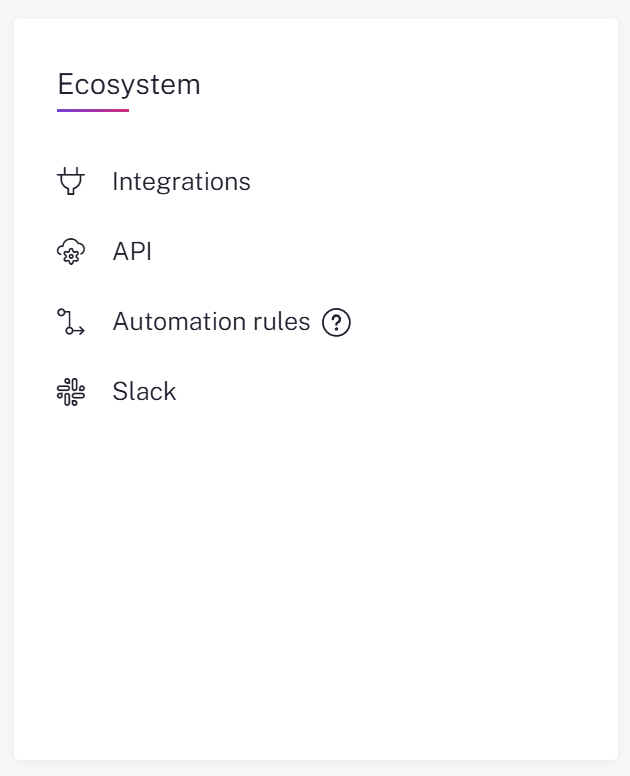
 From there, scroll to the **Ecosystem** section and click **Automation rules**.
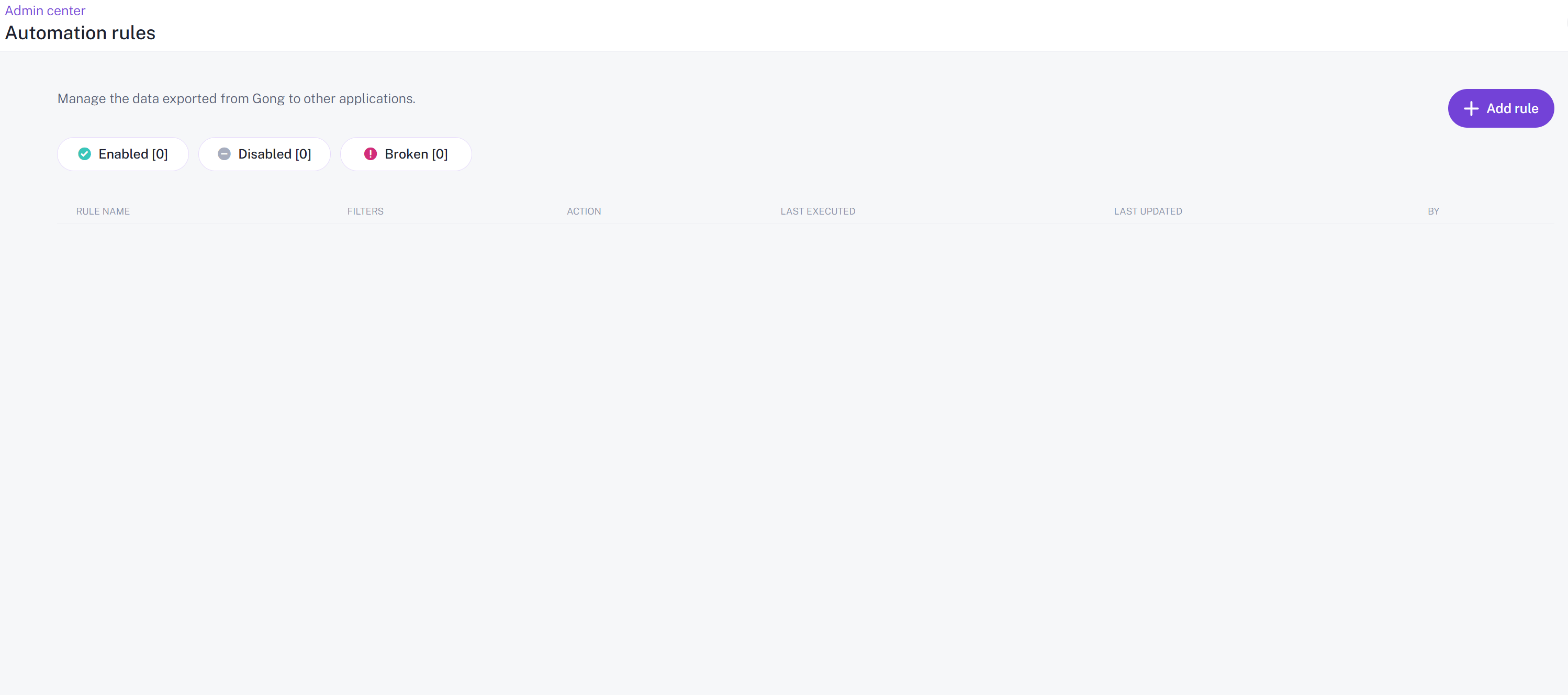
 On the Automation Rules page, click **Add rule**.
 ### Configure the rule
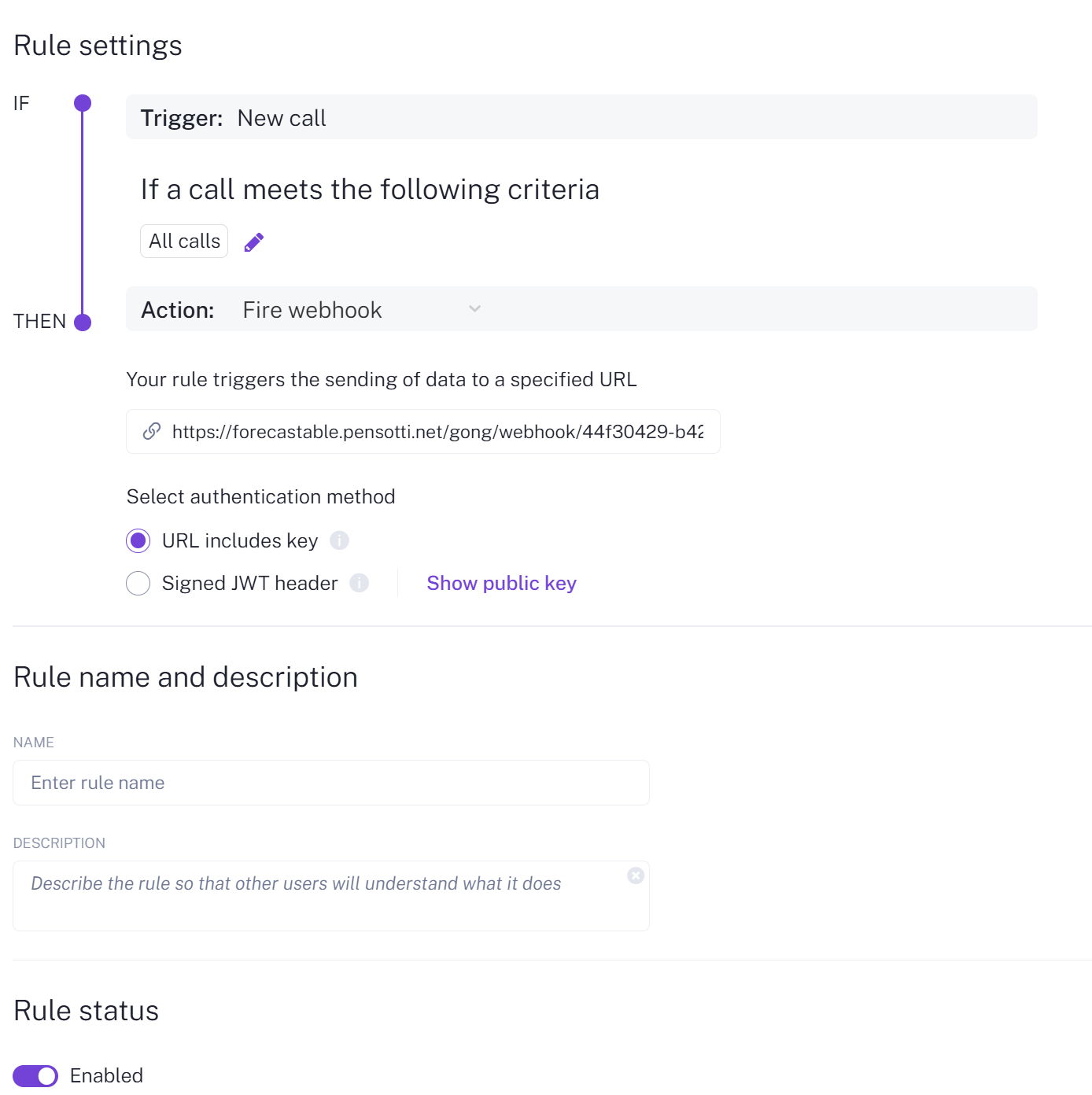
In Gong, leave the action as **Fire webhook** and configure the trigger the way you want.
If you want every new call to be eligible, leave the trigger at **All calls**. If you only want a subset of calls, configure the trigger filters in Gong using the criteria that make sense for your workflow.
Paste the Forecastable webhook URL into the **URL** field.
### Configure the rule
In Gong, leave the action as **Fire webhook** and configure the trigger the way you want.
If you want every new call to be eligible, leave the trigger at **All calls**. If you only want a subset of calls, configure the trigger filters in Gong using the criteria that make sense for your workflow.
Paste the Forecastable webhook URL into the **URL** field.
 Then:
1. give the rule a name
2. optionally add a description
3. make sure **Rule status** is enabled
4. click **Save**
Then:
1. give the rule a name
2. optionally add a description
3. make sure **Rule status** is enabled
4. click **Save**
 At that point, Gong is configured to send matching calls to Forecastable through the webhook URL you copied from the Forecastable settings dialog.
## Option 2: folders
Folders are useful when you want a more manual workflow based on Gong's Company Library.
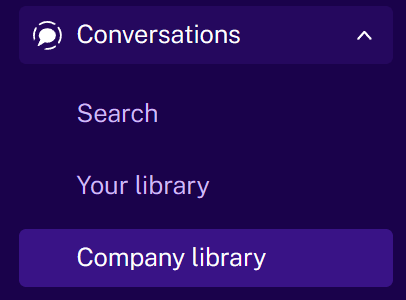
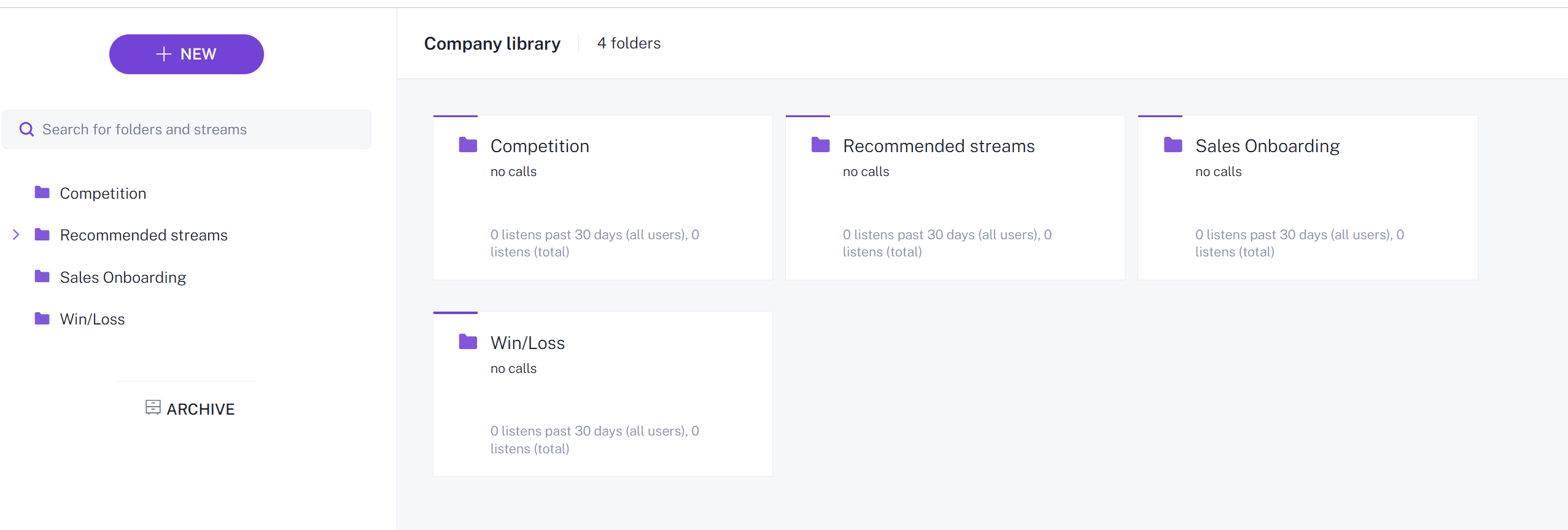
First, in Gong, go to **Conversations → Company library**. You can create a folder there or use an existing one.
At that point, Gong is configured to send matching calls to Forecastable through the webhook URL you copied from the Forecastable settings dialog.
## Option 2: folders
Folders are useful when you want a more manual workflow based on Gong's Company Library.
First, in Gong, go to **Conversations → Company library**. You can create a folder there or use an existing one.
 Then go back to Forecastable, reopen the Gong settings dialog, and use **Sync folders** to select the Gong folders you want Forecastable to track.
Forecastable only retrieves calls from the folders selected here.
Then go back to Forecastable, reopen the Gong settings dialog, and use **Sync folders** to select the Gong folders you want Forecastable to track.
Forecastable only retrieves calls from the folders selected here.
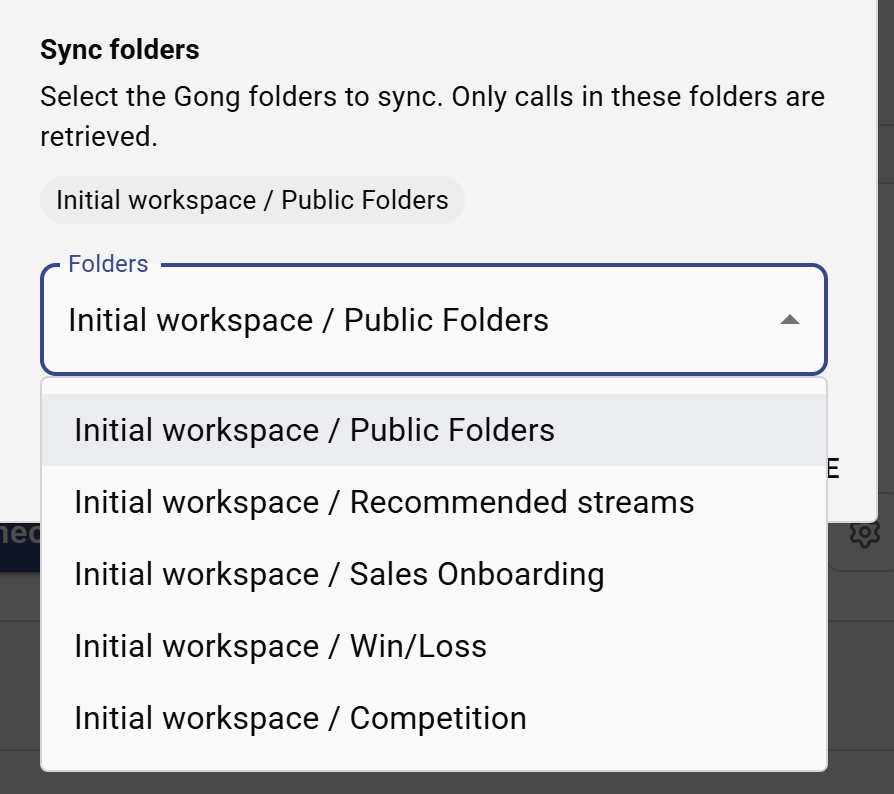 Your folder selection is saved from the settings dialog.
## How to choose between Automation Rules and folders
Use **Automation Rules** when:
* you want Gong to route matching calls automatically
* you want to rely on Gong-side trigger conditions
* you want the webhook-based setup shown in Forecastable's Gong settings
Use **folders** when:
* you want to manage inclusion through Gong's Company Library
* your team already organizes relevant calls into folders
* you want Forecastable to retrieve only the folders you explicitly select
## Verify the setup
After setup, confirm the integration by checking:
* the Gong card remains connected on [Settings → Integrations](https://app.forecastable.com/settings/integrations)
* the webhook URL is available in the Gong settings dialog if you are using Automation Rules
* the expected folders appear in **Sync folders** if you are using folder-based tracking
* matching or selected Gong calls start appearing in Forecastable where call activity is shown
## Troubleshooting
Check the control method you are using:
* if you are using **Automation Rules**, verify the rule exists in Gong, the trigger is configured the way you expect, and the rule is enabled
* if you are using **folders**, verify the right folders are selected in Forecastable
Reconnect the Gong integration and reopen the settings dialog. If the field is still empty, the server may not be configured with the correct public application URL for webhook generation.
Use **Disconnect** on the Gong integration card, reconnect the integration, and then reconfigure your webhook or folder settings.
## Final notes
The cleanest setup is usually:
* authenticate Gong in Forecastable
* copy the Forecastable webhook URL
* configure a Gong Automation Rule if you want automatic call routing
* select Gong folders in Forecastable if you want Company Library based control
That gives your team a documented, repeatable way to decide which Gong calls should be tracked in Forecastable.
Your folder selection is saved from the settings dialog.
## How to choose between Automation Rules and folders
Use **Automation Rules** when:
* you want Gong to route matching calls automatically
* you want to rely on Gong-side trigger conditions
* you want the webhook-based setup shown in Forecastable's Gong settings
Use **folders** when:
* you want to manage inclusion through Gong's Company Library
* your team already organizes relevant calls into folders
* you want Forecastable to retrieve only the folders you explicitly select
## Verify the setup
After setup, confirm the integration by checking:
* the Gong card remains connected on [Settings → Integrations](https://app.forecastable.com/settings/integrations)
* the webhook URL is available in the Gong settings dialog if you are using Automation Rules
* the expected folders appear in **Sync folders** if you are using folder-based tracking
* matching or selected Gong calls start appearing in Forecastable where call activity is shown
## Troubleshooting
Check the control method you are using:
* if you are using **Automation Rules**, verify the rule exists in Gong, the trigger is configured the way you expect, and the rule is enabled
* if you are using **folders**, verify the right folders are selected in Forecastable
Reconnect the Gong integration and reopen the settings dialog. If the field is still empty, the server may not be configured with the correct public application URL for webhook generation.
Use **Disconnect** on the Gong integration card, reconnect the integration, and then reconfigure your webhook or folder settings.
## Final notes
The cleanest setup is usually:
* authenticate Gong in Forecastable
* copy the Forecastable webhook URL
* configure a Gong Automation Rule if you want automatic call routing
* select Gong folders in Forecastable if you want Company Library based control
That gives your team a documented, repeatable way to decide which Gong calls should be tracked in Forecastable.