> ## Documentation Index
> Fetch the complete documentation index at: https://docs.forecastable.com/llms.txt
> Use this file to discover all available pages before exploring further.
# Gmail integration
> Connect Gmail so Forecastable can power email features for your account.
Connect Gmail to enable email-powered features in Forecastable, including Engage email sending and related inbox workflows.
Start on [Settings → Integrations](https://app.forecastable.com/settings/integrations).
## Connect Gmail
Any Forecastable user can connect their own Gmail account.
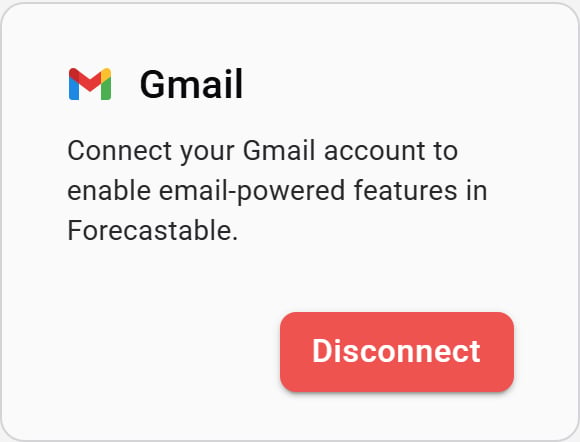 1. On the **Gmail** card, click **Connect**.
2. Sign in with Google and approve access for Forecastable.
3. When authorization finishes, Forecastable returns you to Integrations with Gmail connected.
## Disconnect
Use **Disconnect** on the Gmail card to remove the connection.
## Verify the setup
* The Gmail card shows **Disconnect**
* Email features that require a connected mailbox work for your user
## Troubleshooting
Confirm you are using a Google account your admin allows for third-party apps. Try again, or ask your Google Workspace admin to allow Forecastable / Nylas access.
Use the [Microsoft](/integrations/microsoft) or [IMAP](/integrations/imap) connectors instead.
1. On the **Gmail** card, click **Connect**.
2. Sign in with Google and approve access for Forecastable.
3. When authorization finishes, Forecastable returns you to Integrations with Gmail connected.
## Disconnect
Use **Disconnect** on the Gmail card to remove the connection.
## Verify the setup
* The Gmail card shows **Disconnect**
* Email features that require a connected mailbox work for your user
## Troubleshooting
Confirm you are using a Google account your admin allows for third-party apps. Try again, or ask your Google Workspace admin to allow Forecastable / Nylas access.
Use the [Microsoft](/integrations/microsoft) or [IMAP](/integrations/imap) connectors instead.