> ## Documentation Index
> Fetch the complete documentation index at: https://docs.forecastable.com/llms.txt
> Use this file to discover all available pages before exploring further.
# Fathom.ai integration
> Connect Fathom.ai to sync meeting data into Forecastable.
Connect Fathom.ai to sync meeting data into Forecastable.
Start on [Settings → Integrations](https://app.forecastable.com/settings/integrations).
## Connect Fathom
Any Forecastable user can connect Fathom.
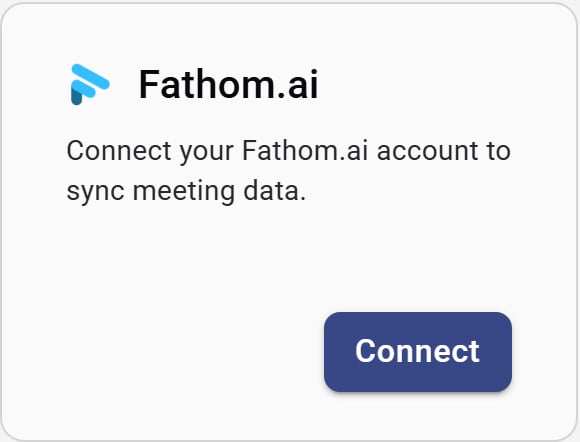 1. On the **Fathom.ai** card, click **Connect**.
2. Complete the Fathom OAuth sign-in.
3. When authorization finishes, Forecastable returns you to Integrations with Fathom connected.
## Disconnect
Use **Disconnect** on the Fathom card to remove the connection.
## Verify the setup
* The Fathom card shows **Disconnect**
* Meeting data from Fathom begins appearing where Forecastable shows call activity
## Troubleshooting
Video-call connectors can conflict in the UI. If meetings do not appear as expected after switching providers, disconnect the previous connector and reconnect Fathom.
Refresh Integrations. Start the OAuth flow again if the status does not update.
1. On the **Fathom.ai** card, click **Connect**.
2. Complete the Fathom OAuth sign-in.
3. When authorization finishes, Forecastable returns you to Integrations with Fathom connected.
## Disconnect
Use **Disconnect** on the Fathom card to remove the connection.
## Verify the setup
* The Fathom card shows **Disconnect**
* Meeting data from Fathom begins appearing where Forecastable shows call activity
## Troubleshooting
Video-call connectors can conflict in the UI. If meetings do not appear as expected after switching providers, disconnect the previous connector and reconnect Fathom.
Refresh Integrations. Start the OAuth flow again if the status does not update.