> ## Documentation Index
> Fetch the complete documentation index at: https://docs.forecastable.com/llms.txt
> Use this file to discover all available pages before exploring further.
# ChatGPT integration
> Connect ChatGPT to Forecastable with a custom MCP connection.
Use ChatGPT to look up Forecastable accounts, summarize plans, and work with your sales data through the [MCP server](/developers/mcp).
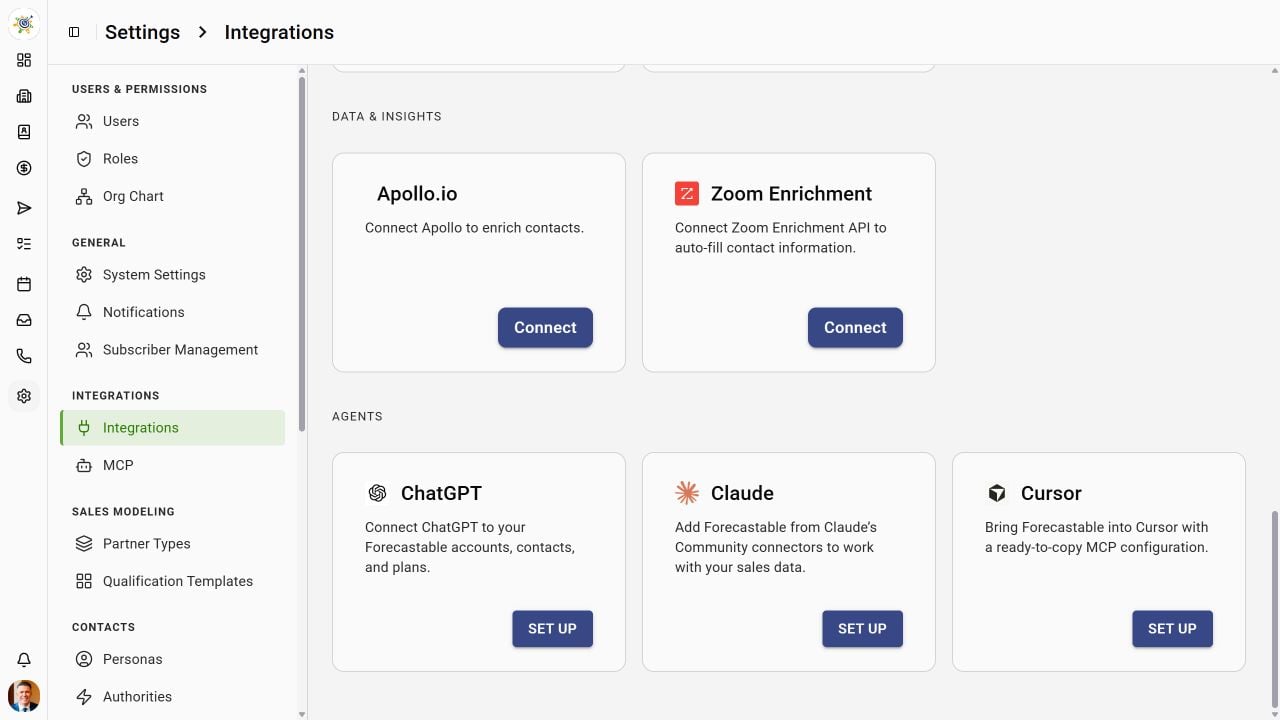
Start on [Settings → Integrations](https://app.forecastable.com/settings/integrations) and select **Set up** on the **ChatGPT** card under **Agents**.
 ## Before you begin
You need a Forecastable account and access to custom MCP connections in ChatGPT on the web. Availability depends on your ChatGPT account and workspace policy; ask your workspace administrator if developer mode is unavailable.
## Connect ChatGPT
Open ChatGPT **Settings → Security and login** and enable **Developer mode**.
Open [ChatGPT Plugins](https://chatgpt.com/plugins) and select the **+** button to create a developer-mode app. Enter:
| Field | Value |
| - | - |
| Name | `Forecastable` |
| Description | `Work with Forecastable accounts, contacts, and plans.` |
| MCP server URL | `https://app.forecastable.com/mcp` |
| Authentication | **OAuth** |
Use dynamic client registration (**DCR**) if ChatGPT asks for the OAuth registration method. Forecastable supports DCR, so you do not need to create a client ID or secret manually.
Create the connection, sign in to Forecastable, and approve the requested access. Review the discovered tools. In a new conversation, open the **+** menu, choose **Developer mode**, and select **Forecastable**.
## Try it
Ask: “Use Forecastable to list my organizations. Ask me which organization to use, then list five accounts from it.”
Single-organization users receive an automatic default and can call `listPlans` without an organization parameter. If an organization is missing, the error lists accessible names and IDs; retry with `params.organizationId`. With multiple organizations, use `setActiveOrganization` to save your choice across reconnects and new chats on the same token.
## Manage the connection
Open the Forecastable connection in ChatGPT to refresh its tools or remove it. Reconnect if your authorization expires or your permissions change. Your Forecastable permissions and the scopes you approve determine which records and actions are available.
For current client controls, see OpenAI’s [connection guide](https://developers.openai.com/plugins/deploy/connect-chatgpt) and [developer mode documentation](https://developers.openai.com/api/docs/guides/developer-mode).
This documentation is built and hosted on [Mintlify](https://mintlify.com), a developer documentation platform.
## Before you begin
You need a Forecastable account and access to custom MCP connections in ChatGPT on the web. Availability depends on your ChatGPT account and workspace policy; ask your workspace administrator if developer mode is unavailable.
## Connect ChatGPT
Open ChatGPT **Settings → Security and login** and enable **Developer mode**.
Open [ChatGPT Plugins](https://chatgpt.com/plugins) and select the **+** button to create a developer-mode app. Enter:
| Field | Value |
| - | - |
| Name | `Forecastable` |
| Description | `Work with Forecastable accounts, contacts, and plans.` |
| MCP server URL | `https://app.forecastable.com/mcp` |
| Authentication | **OAuth** |
Use dynamic client registration (**DCR**) if ChatGPT asks for the OAuth registration method. Forecastable supports DCR, so you do not need to create a client ID or secret manually.
Create the connection, sign in to Forecastable, and approve the requested access. Review the discovered tools. In a new conversation, open the **+** menu, choose **Developer mode**, and select **Forecastable**.
## Try it
Ask: “Use Forecastable to list my organizations. Ask me which organization to use, then list five accounts from it.”
Single-organization users receive an automatic default and can call `listPlans` without an organization parameter. If an organization is missing, the error lists accessible names and IDs; retry with `params.organizationId`. With multiple organizations, use `setActiveOrganization` to save your choice across reconnects and new chats on the same token.
## Manage the connection
Open the Forecastable connection in ChatGPT to refresh its tools or remove it. Reconnect if your authorization expires or your permissions change. Your Forecastable permissions and the scopes you approve determine which records and actions are available.
For current client controls, see OpenAI’s [connection guide](https://developers.openai.com/plugins/deploy/connect-chatgpt) and [developer mode documentation](https://developers.openai.com/api/docs/guides/developer-mode).
This documentation is built and hosted on [Mintlify](https://mintlify.com), a developer documentation platform.