> ## Documentation Index
> Fetch the complete documentation index at: https://docs.forecastable.com/llms.txt
> Use this file to discover all available pages before exploring further.
# Apollo.io integration
> Connect Apollo.io with an API key so Forecastable can enrich contacts.
Connect Apollo.io to enrich contacts in Forecastable. Apollo is available to Forecastable admins.
Start on [Settings → Integrations](https://app.forecastable.com/settings/integrations).
## Connect Apollo
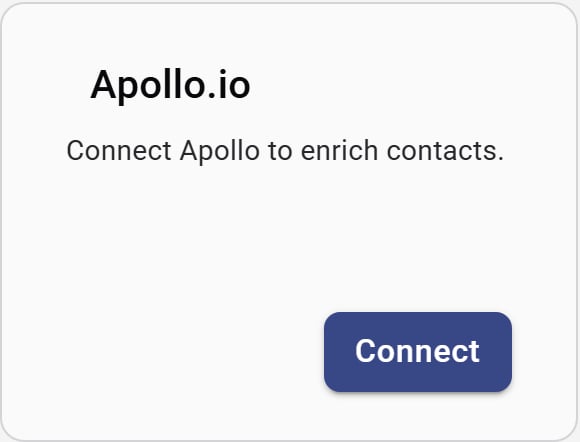 1. On the **Apollo.io** card, click **Connect**.
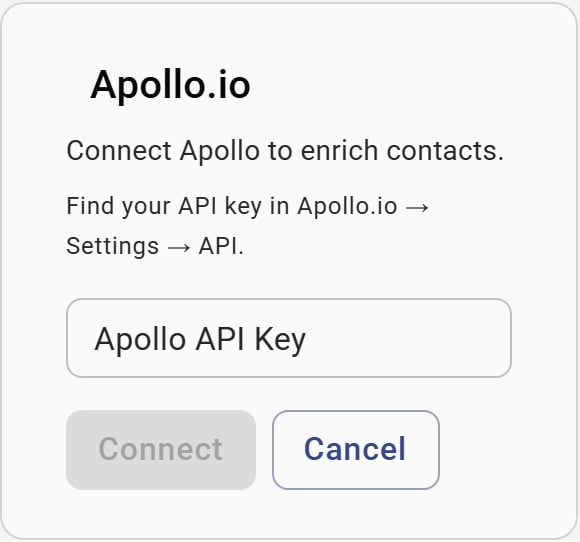
2. In Apollo, open **Settings → API** and copy your API key.
3. Paste the key into Forecastable and click **Connect**.
1. On the **Apollo.io** card, click **Connect**.
2. In Apollo, open **Settings → API** and copy your API key.
3. Paste the key into Forecastable and click **Connect**.
 ## Disconnect
Use **Disconnect** on the Apollo card to remove the API key connection.
## Verify the setup
* The Apollo card shows **Disconnect**
* Contact enrichment actions that depend on Apollo succeed for your organization
## Troubleshooting
Confirm the key is active in Apollo Settings → API, copy it again, and reconnect.
Apollo appears under **Data & Insights** for Forecastable admins only.
## Disconnect
Use **Disconnect** on the Apollo card to remove the API key connection.
## Verify the setup
* The Apollo card shows **Disconnect**
* Contact enrichment actions that depend on Apollo succeed for your organization
## Troubleshooting
Confirm the key is active in Apollo Settings → API, copy it again, and reconnect.
Apollo appears under **Data & Insights** for Forecastable admins only.